# Cross-IDE Template Kit | WPF Controls | DevExpress Documentation
The **DevExpress Template Kit** allows you to create various starter WPF projects with built-in DevExpress UI components and libraries.
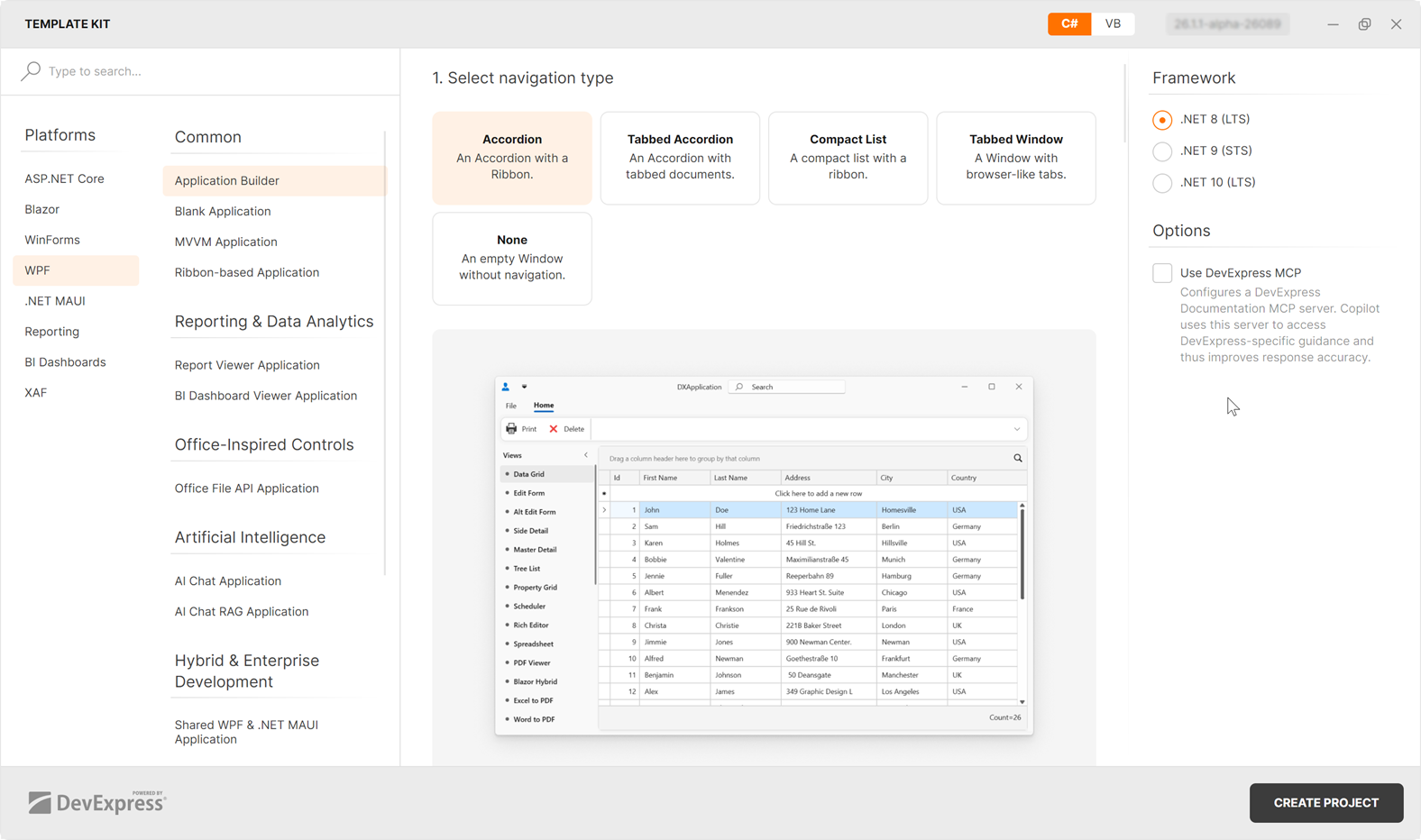
The Template Kit is based on dotnet CLI templates and is available across multiple IDEs targeting Microsoft Windows:
- Visual Studio
- VS Code
- JetBrains Rider
Note
All templates described in this article target .NET 8.0+ and support C# and VB languages.
## Visual Studio
The **DevExpress Template Kit for Visual Studio** allows you to create a new project or add a new item to an existing project.
### Install Extension
The Template Kit is available as a VSIX extension. You can install the extension for Visual Studio using one of the following options:
- Run the [DevExpress Unified Component Installer](/GeneralInformation/15615/installation/download-the-registered-version) to add the Template Kit as a Visual Studio extension.
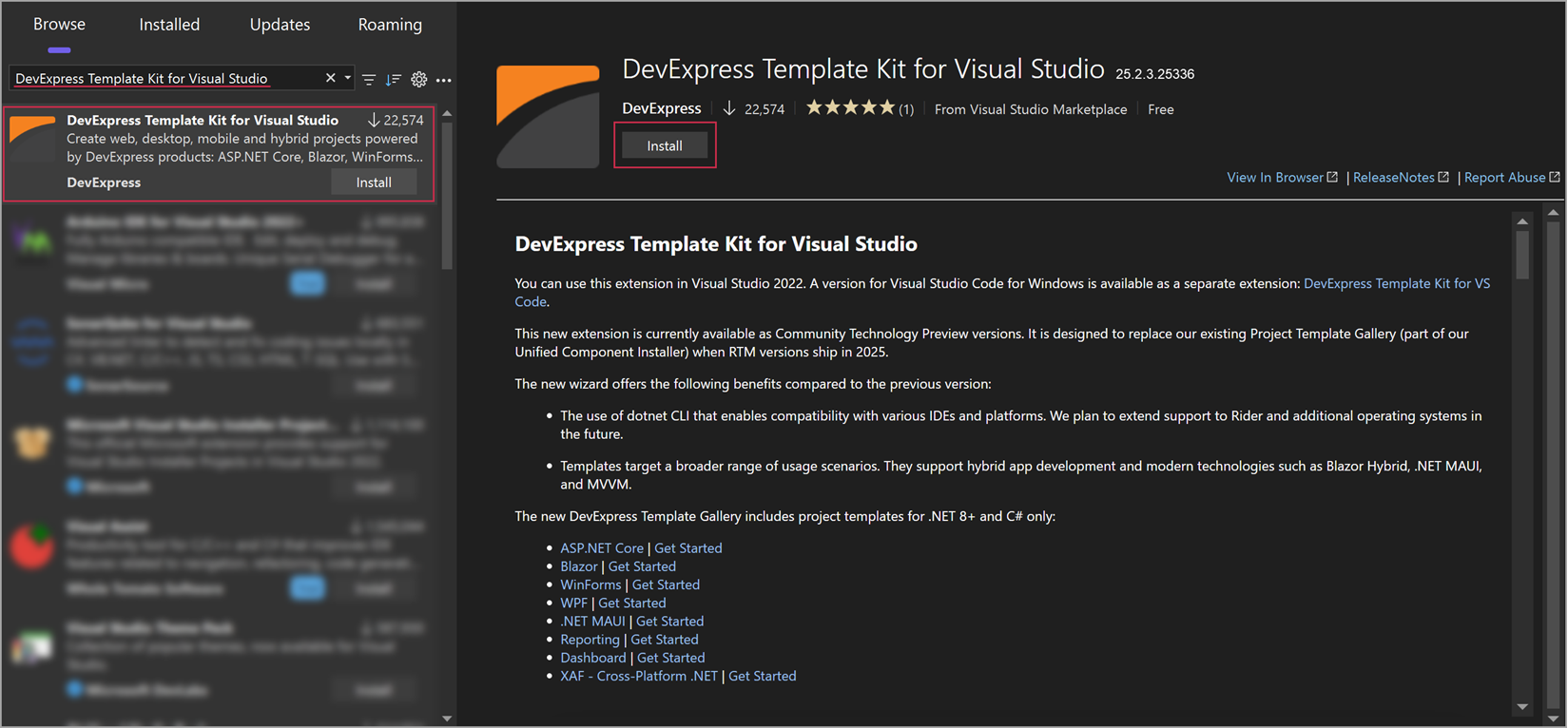
- Use the [Visual Studio Extension Manager](https://learn.microsoft.com/en-us/visualstudio/ide/finding-and-using-visual-studio-extensions#use-extension-manager):
1. In Visual Studio, select **Extensions** → **Manage Extensions**.
2. Type *DevExpress Template Kit for Visual Studio* in the **Extension Manager** search box.
3. Select the extension and click **Install**.
- Download the extension from the **Visual Studio Marketplace**: [DevExpress Template Kit for Visual Studio](https://go.devexpress.com/DevExpress_Template_Kit_VisualStudio.aspx).
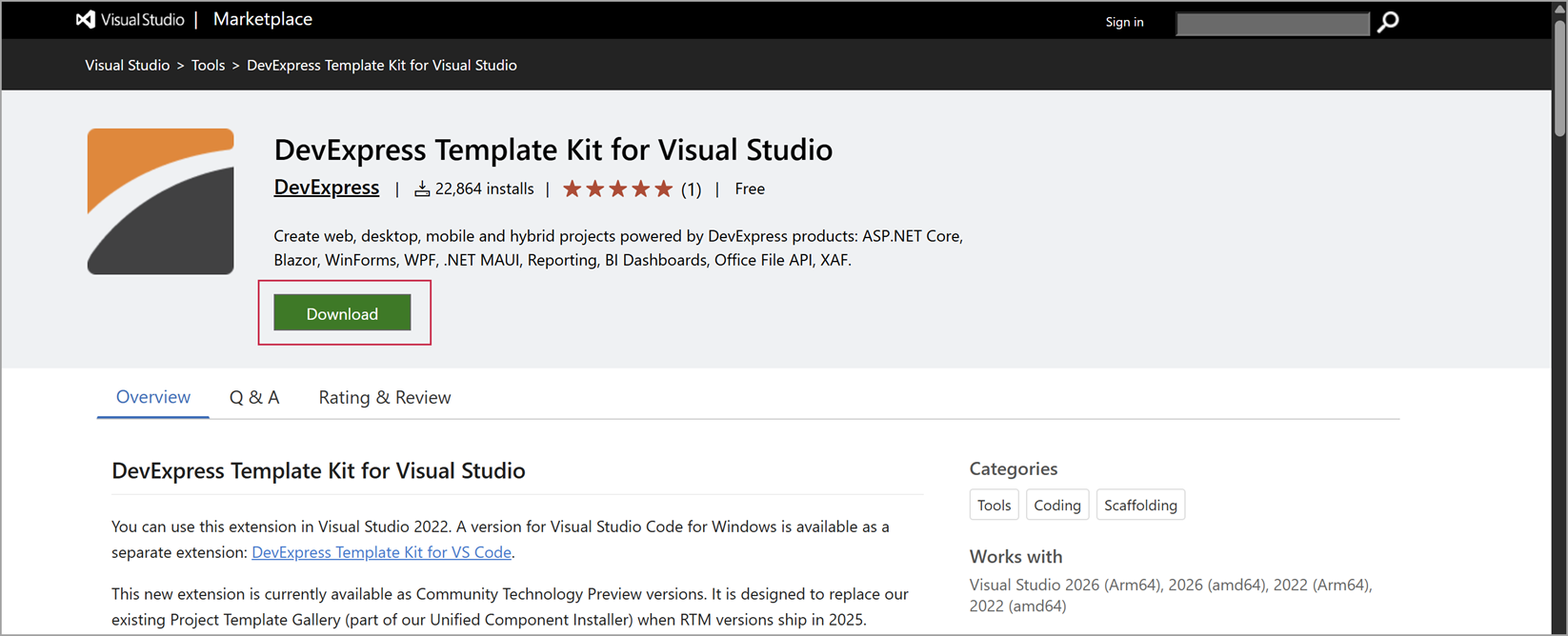
Once ready, install the extension.
### Create a New Project in Visual Studio
To create a new project, follow the steps below:
1. In Visual Studio, select **File** → **New** → **Project**.
2. In the **Create a new project** window, select **DevExpress v26.1 Template Kit**, and click **Next**.
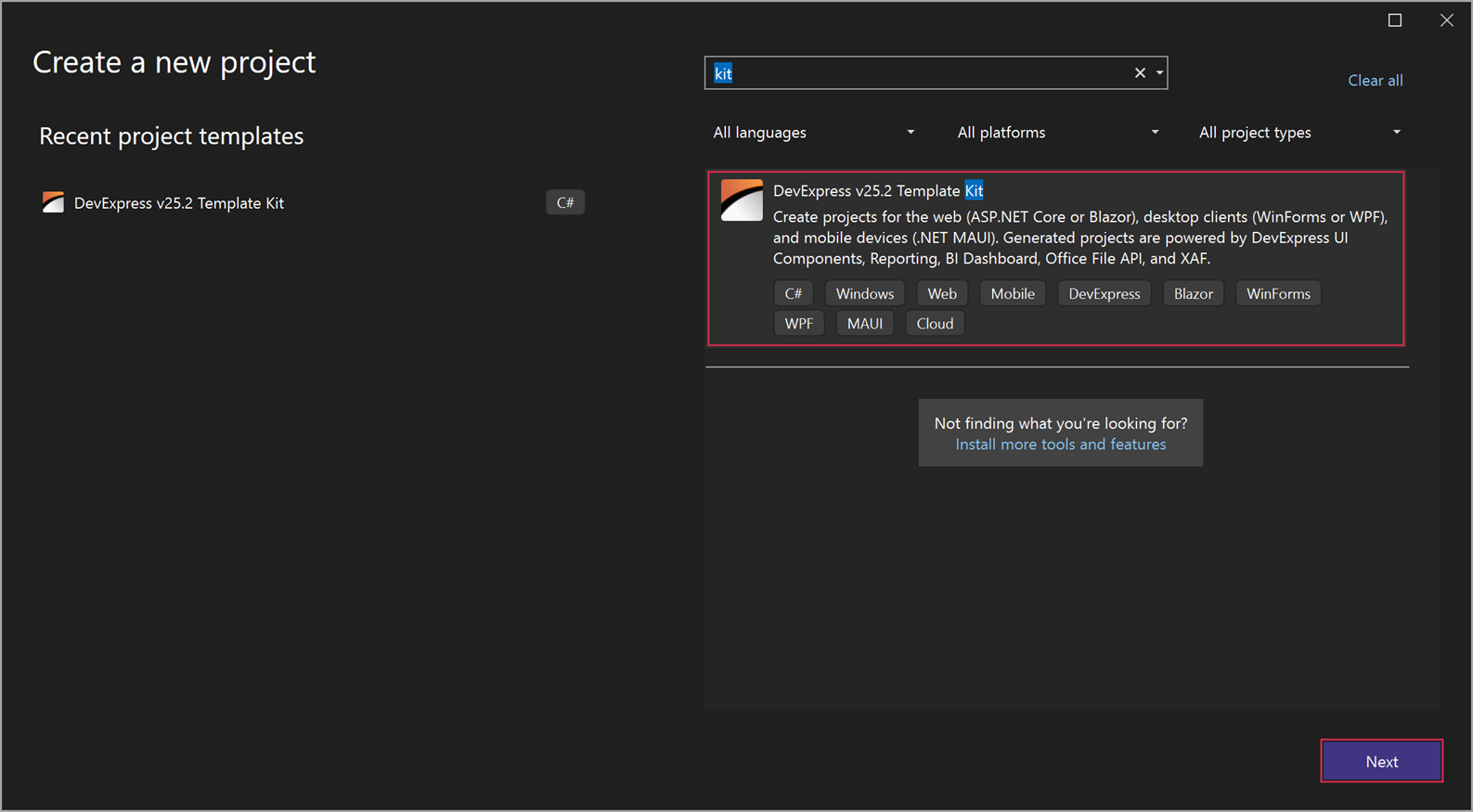
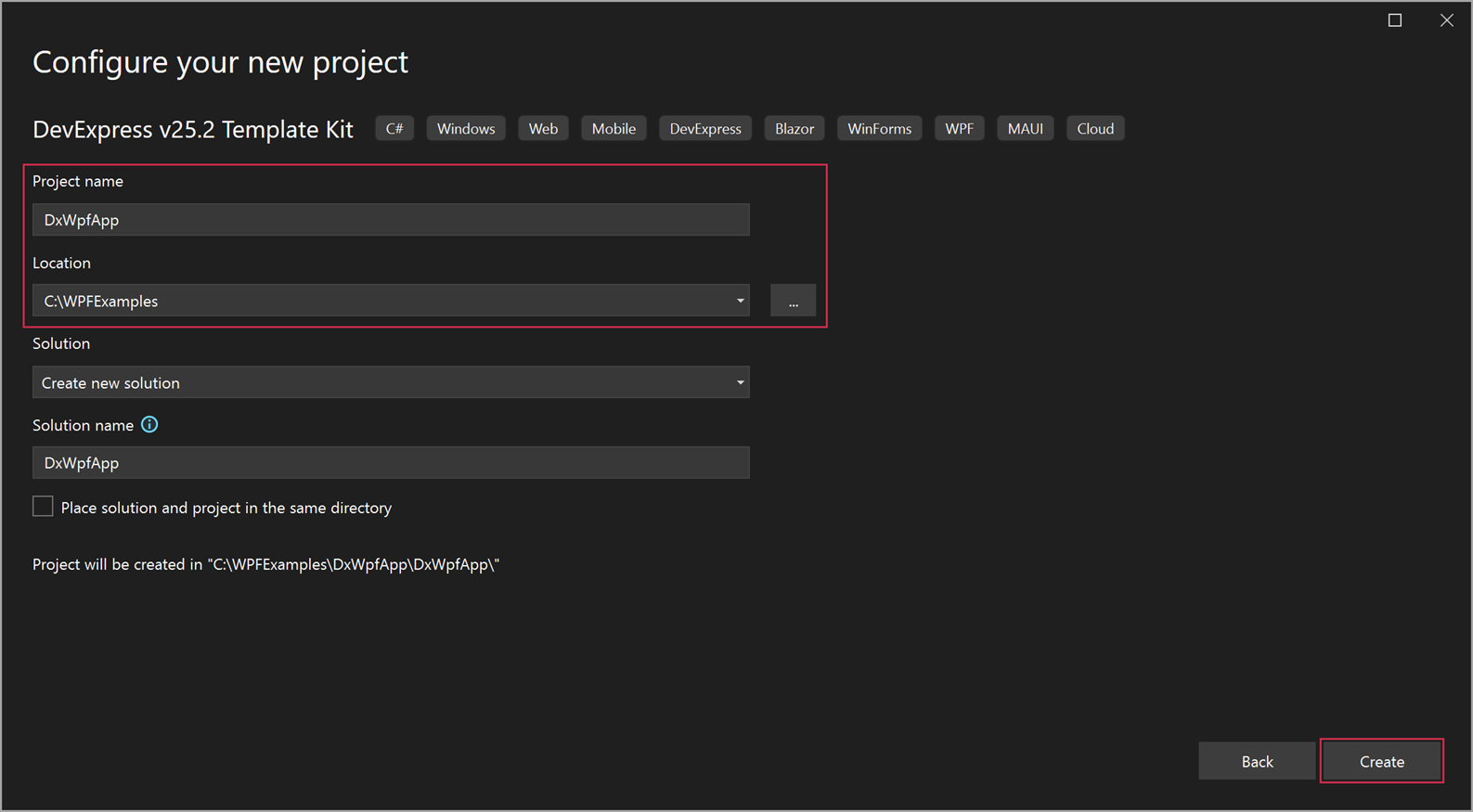
3. In the **Configure your new project** window, specify the project name and location, and click **Create**.
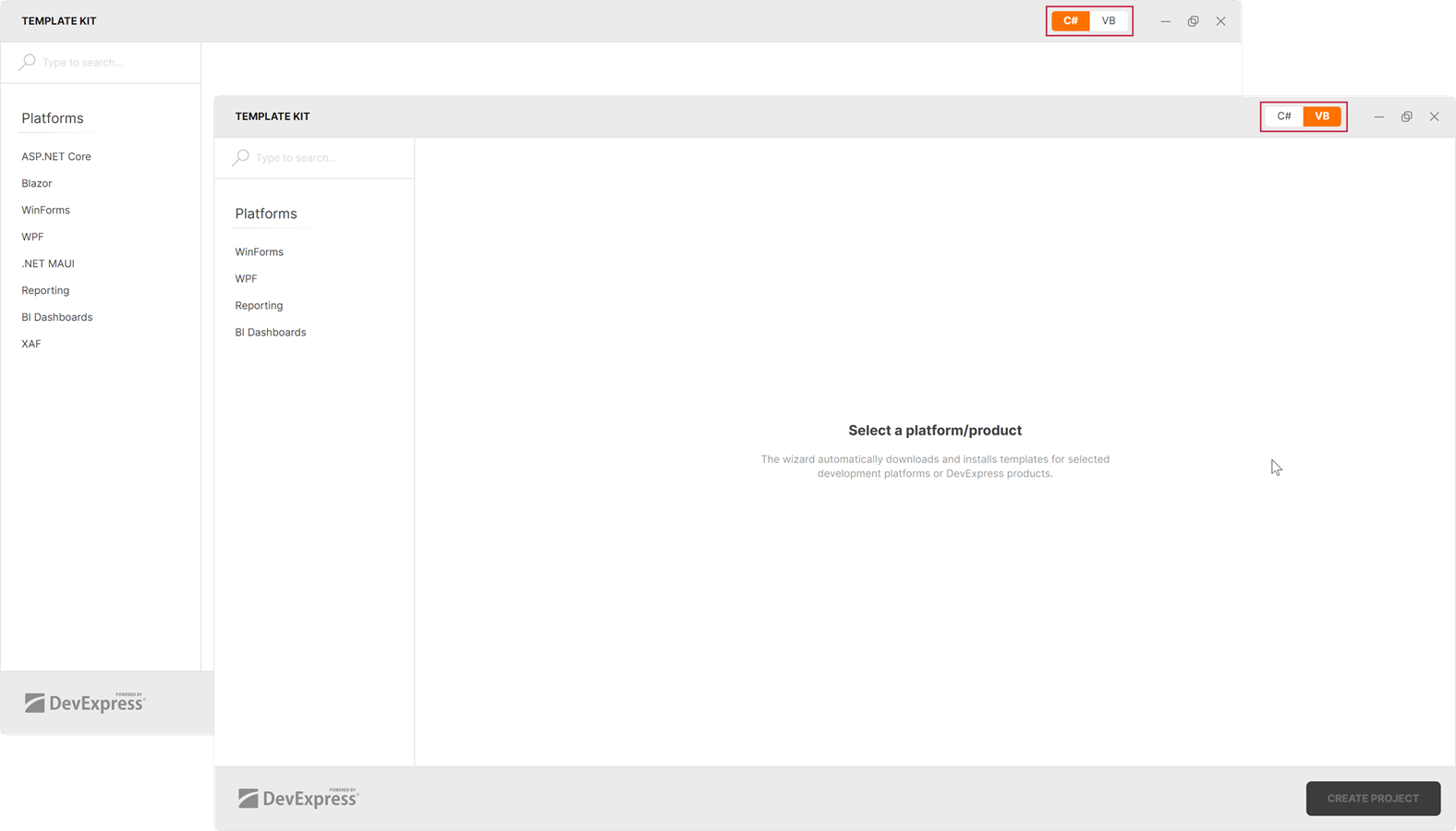
4. In the **Template Kit** window, select the **C#** or **VB** language.
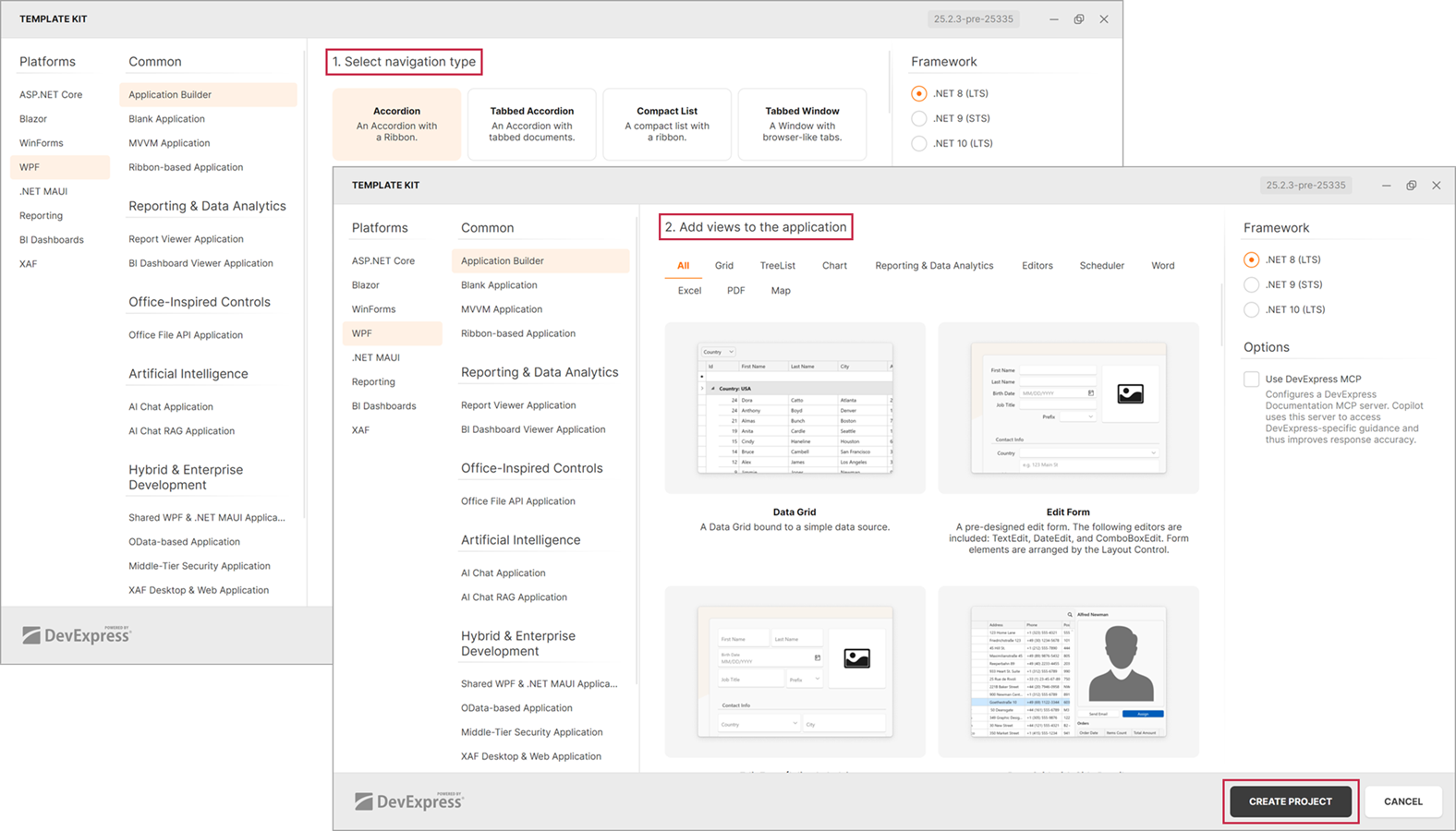
5. Select the WPF platform, configure project parameters, and click **CREATE PROJECT**.
### Add a New Item in Visual Studio
To add a new item to an existing project, follow the steps below:
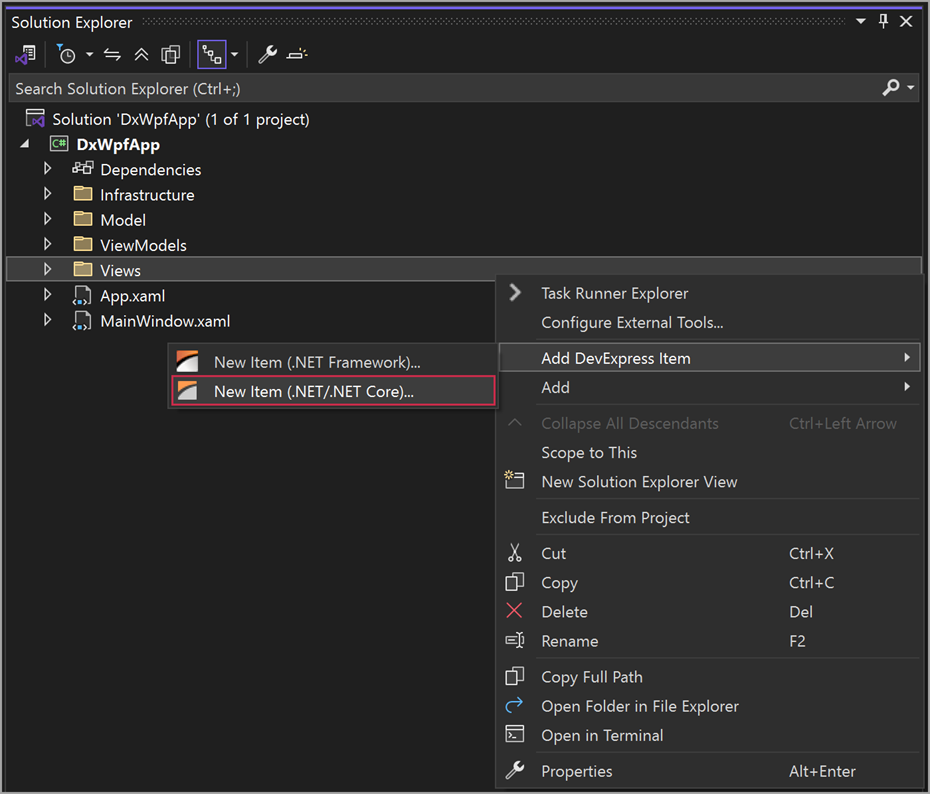
1. In the **Solution Explorer**, open the context menu and perform one of the following actions:
- Select **Add** → **New Item** or **Add** → **Class**.
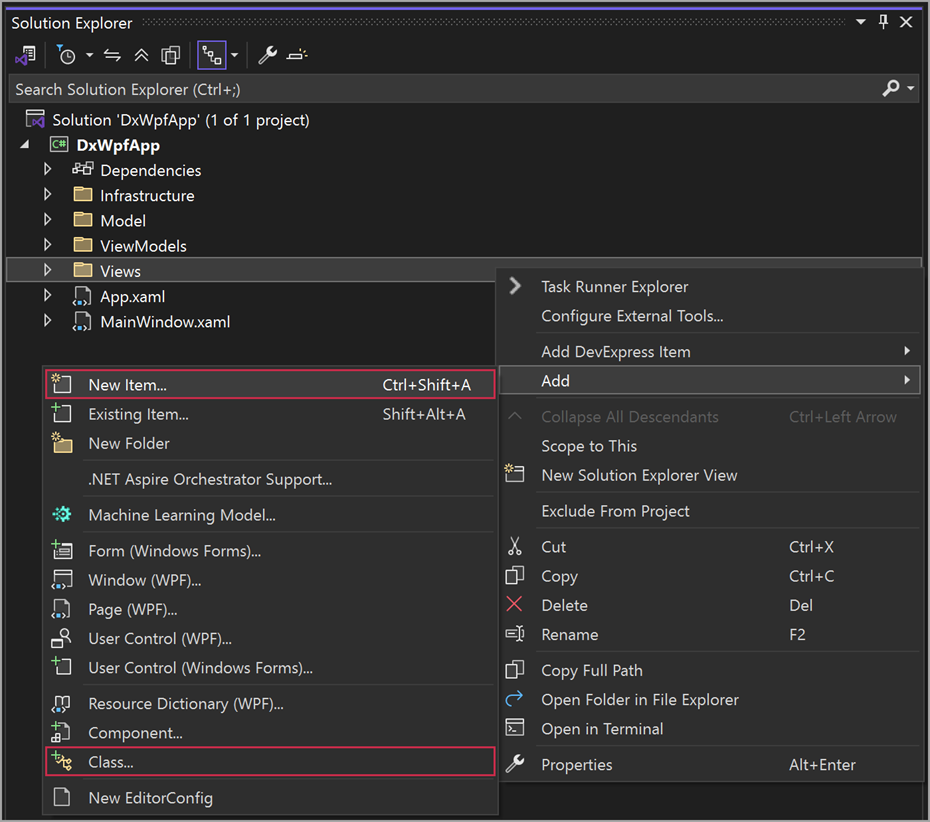
- Select **Add DevExpress Item** → **New Item (.NET/.NET Core…)**.
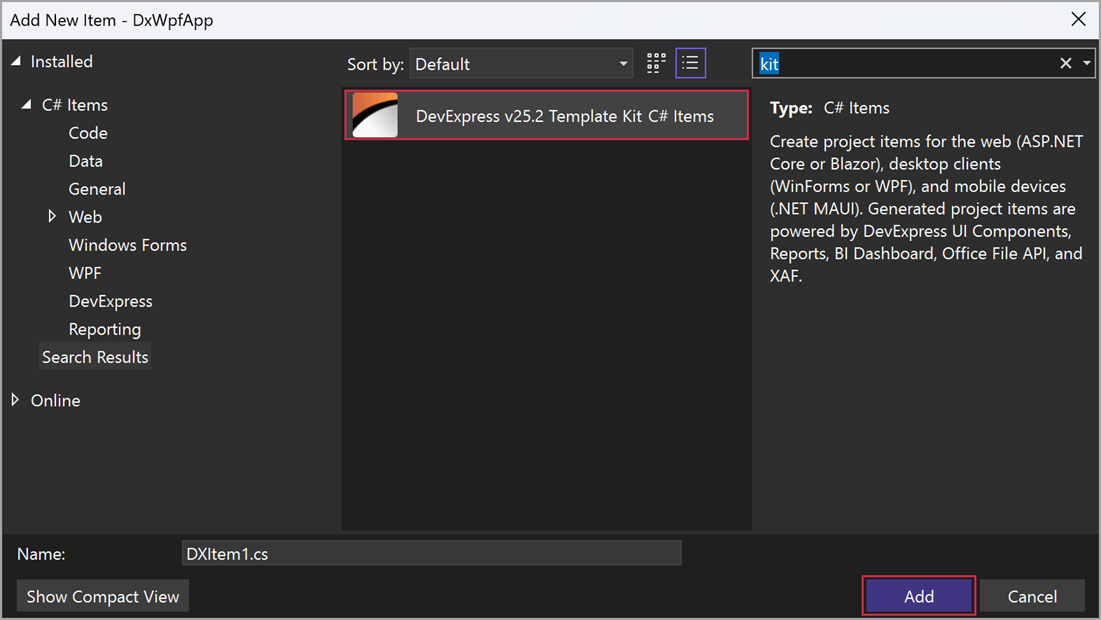
2. In the **Add New Item** dialog, select **DevExpress v26.1 Template Kit**, specify the item name, and click **Add**.
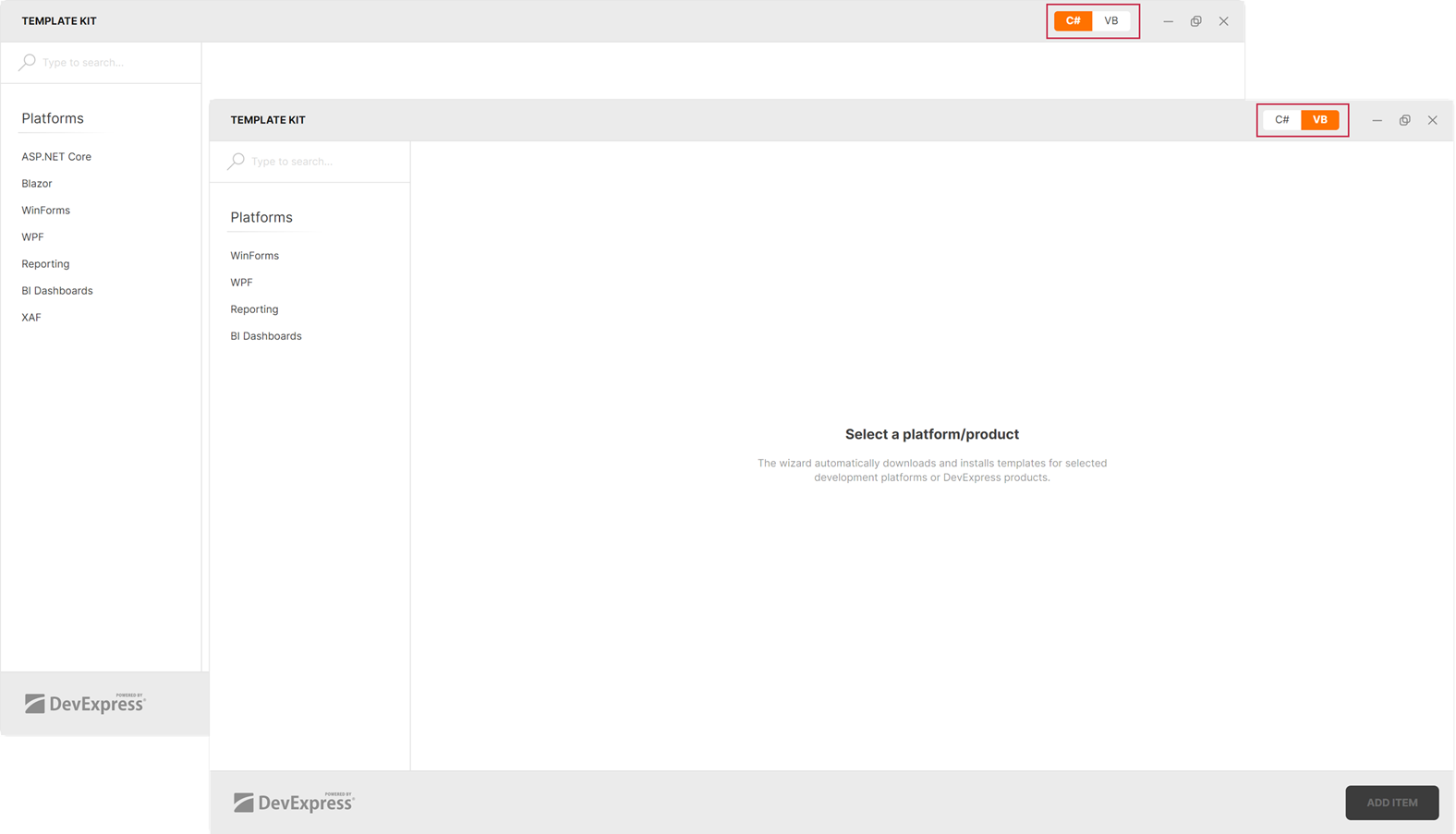
3. In the **Template Kit** window, select the **C#** or **VB** language.
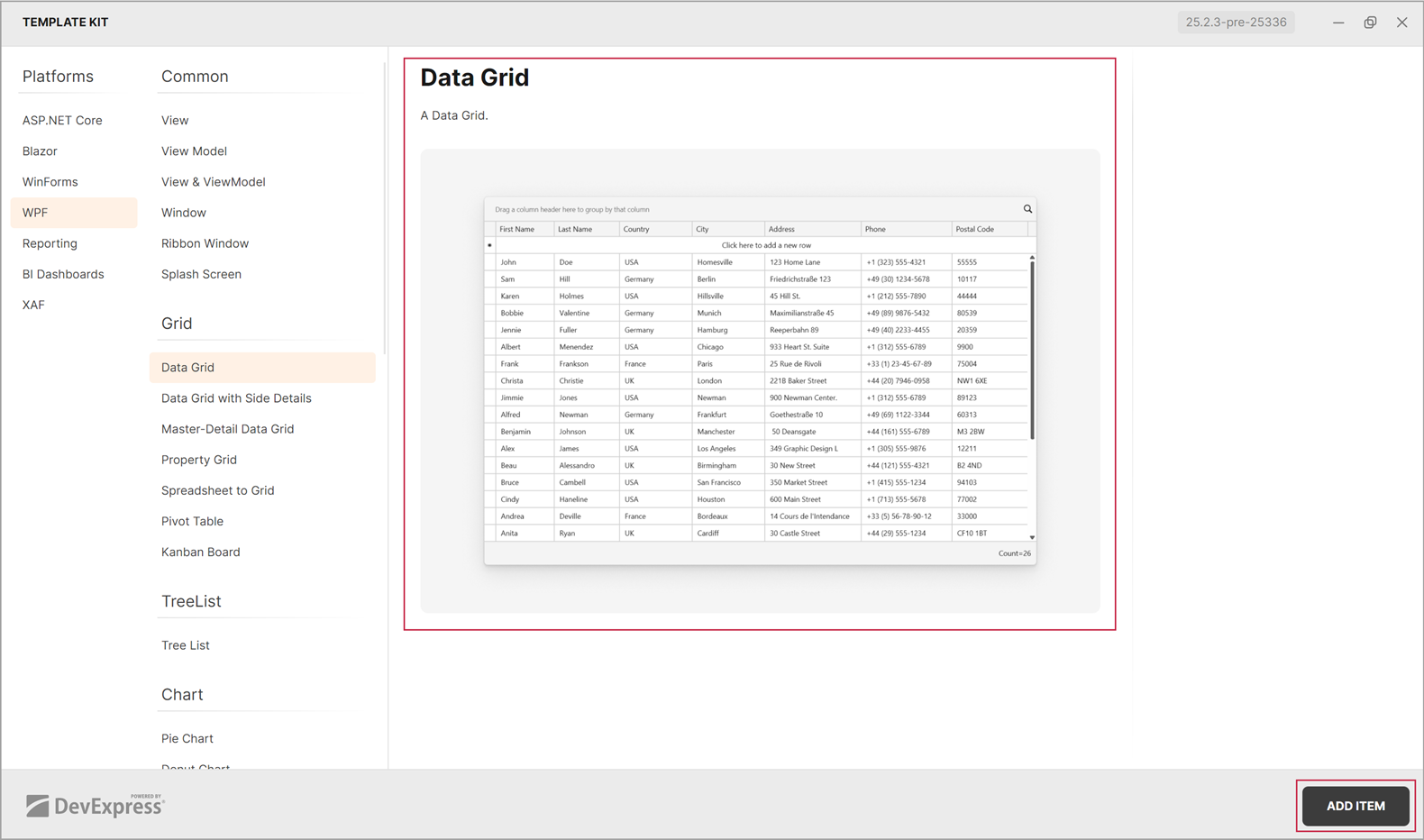
4. Select the WPF platform, choose an item template, specify the item name, and click **ADD ITEM**.
## VS Code
The **DevExpress Template Kit for VS Code** allows you to create a new project based on a predefined template.
### Install Extension
You can install the Template Kit for VS Code using one of the following options:
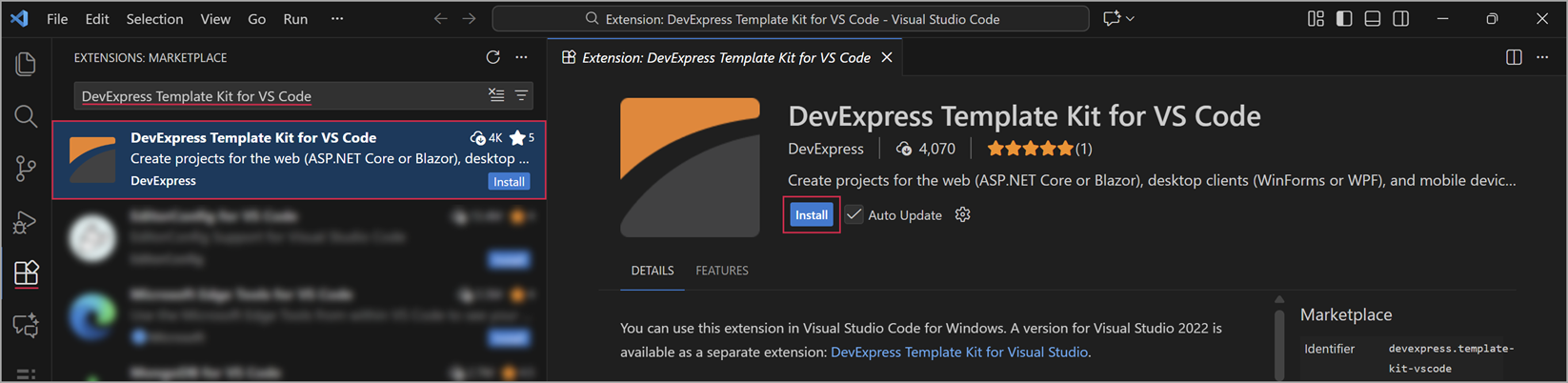
- Use the **Extensions** service:
**1**. In VS Code, open the **Extensions** tab.
**2**. Type *DevExpress Template Kit for VS Code* in the search box.
**3**. Select the extension and click **Install**.
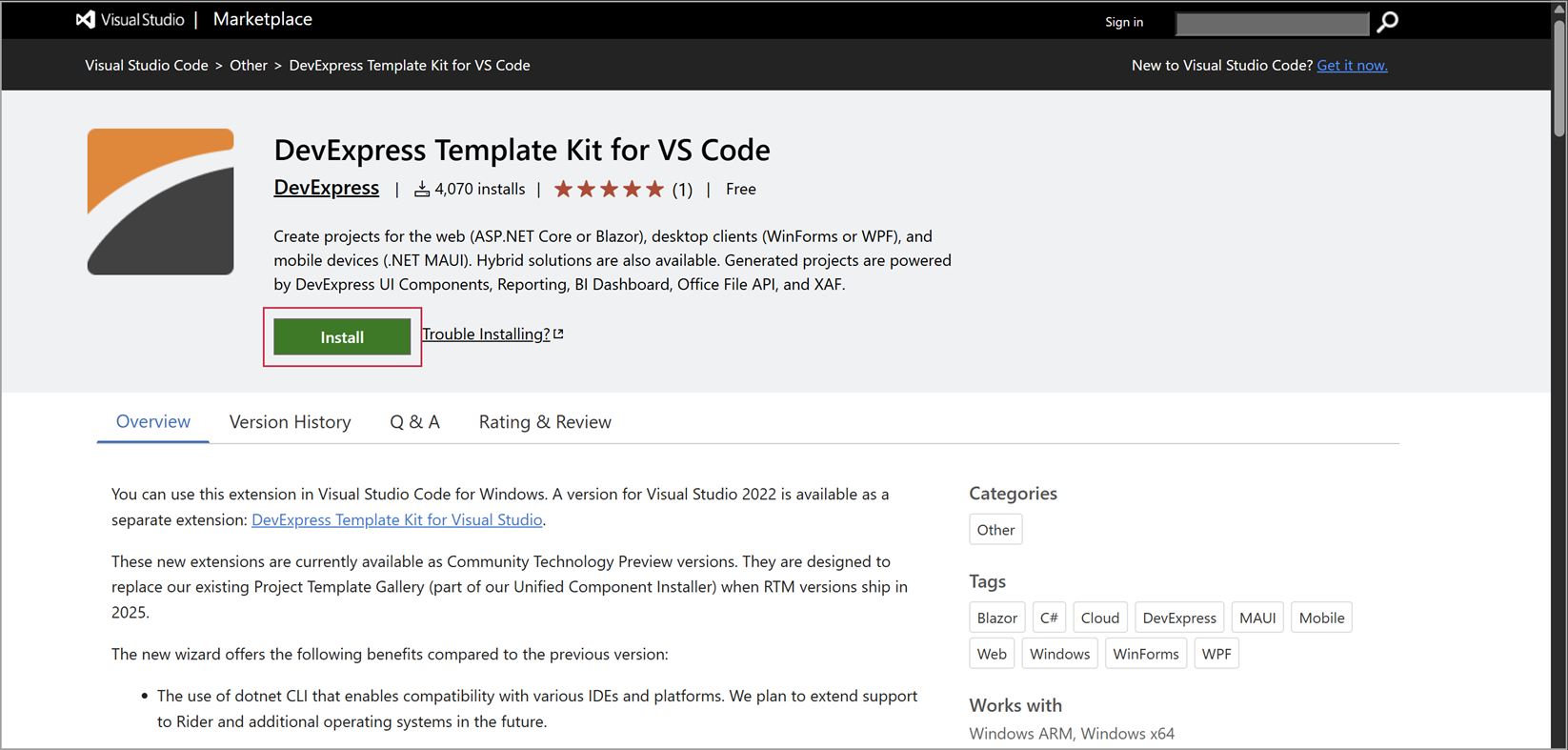
- Install a separate extension from the **Visual Studio Marketplace**: [DevExpress Template Kit for VS Code](https://go.devexpress.com/DevExpress_Template_Kit_VSCode.aspx).
### Create a New Project in VS Code
To create a new project using the DevExpress Template Kit, follow the steps below:
1. In VS Code, select **File** → **New Window**.
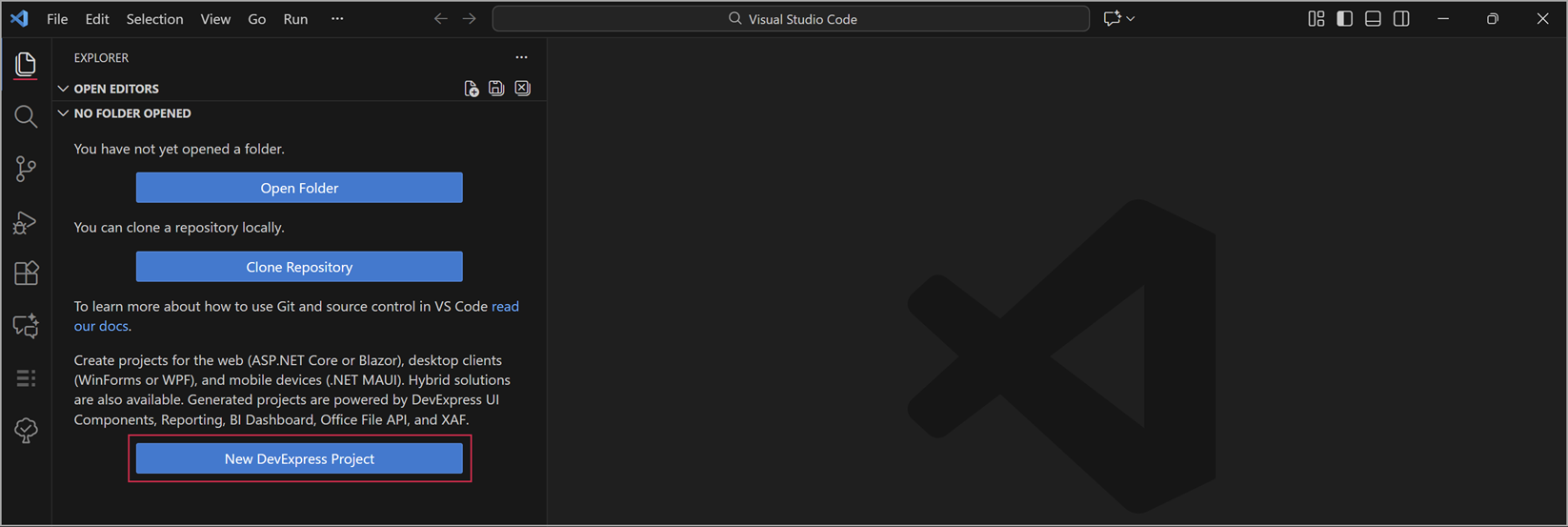
2. Open the **Explorer** tab and click **New DevExpress Project**.
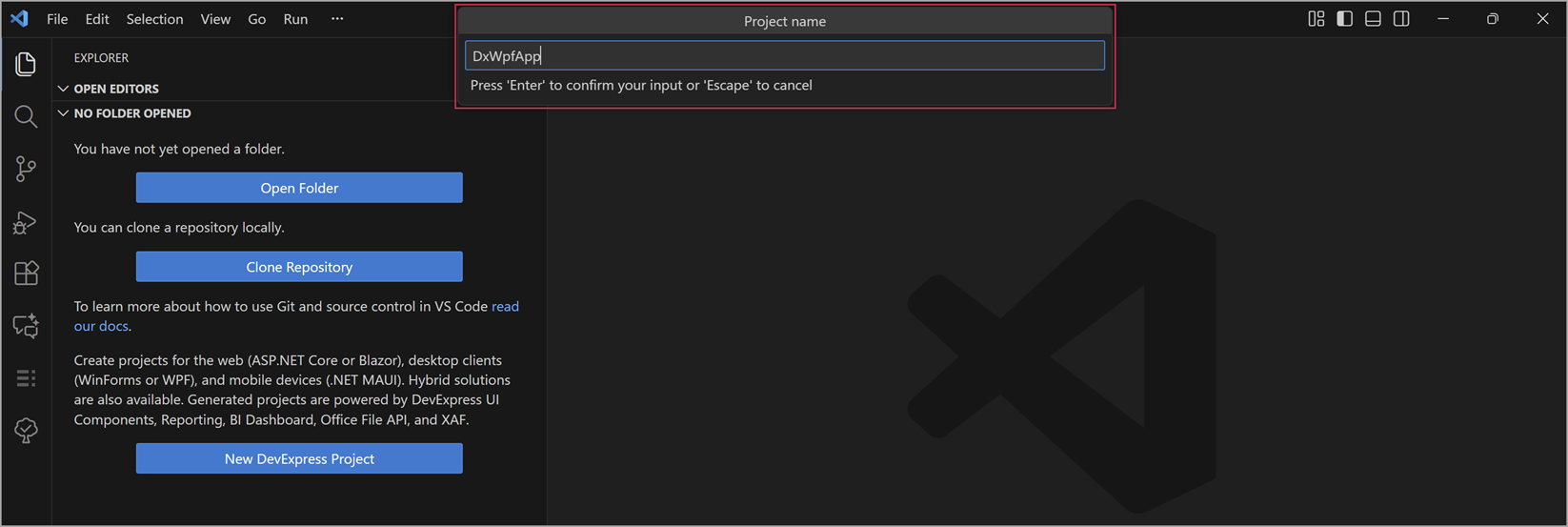
3. Specify the project name and press Enter.
4. Select a project location and click the **Select Folder** button.
5. In the **Template Kit** window, select the **C#** or **VB** language.

6. Select the WPF platform, configure project parameters, and click **CREATE PROJECT**.

## JetBrains Rider
The **DevExpress Template Kit for JetBrains Rider** allows you to create new projects based on predefined templates.
### Install Plugin
Install the **DevExpress Template Kit** plugin for JetBrains Rider from the JetBrains Marketplace: [DevExpress Template Kit](https://plugins.jetbrains.com/plugin/28875-devexpress-template-kit).
### Create a New Project in Rider
To create a new project using the DevExpress Template Kit, follow the steps below:
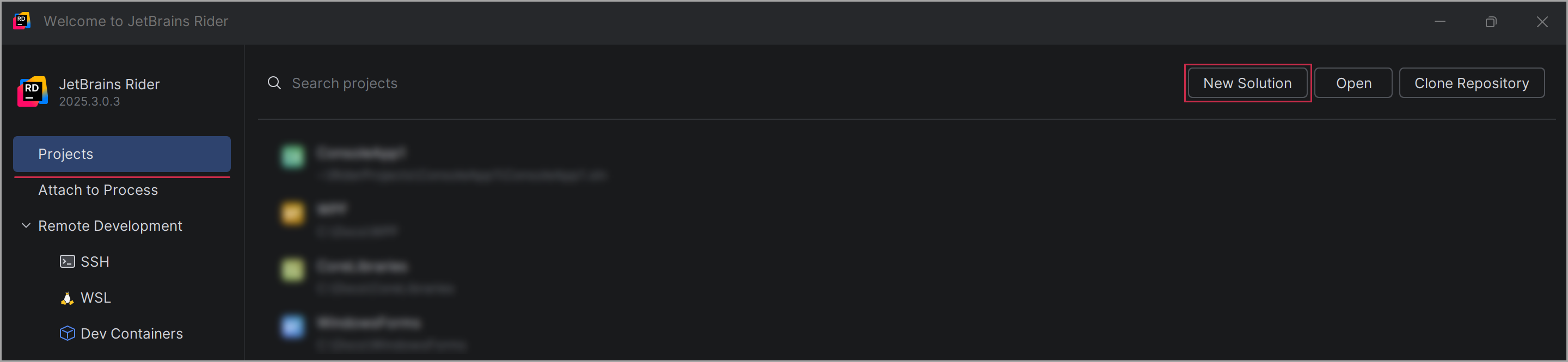
1. In the JetBrains Rider, open the **Projects** tab and click **New Solution**.
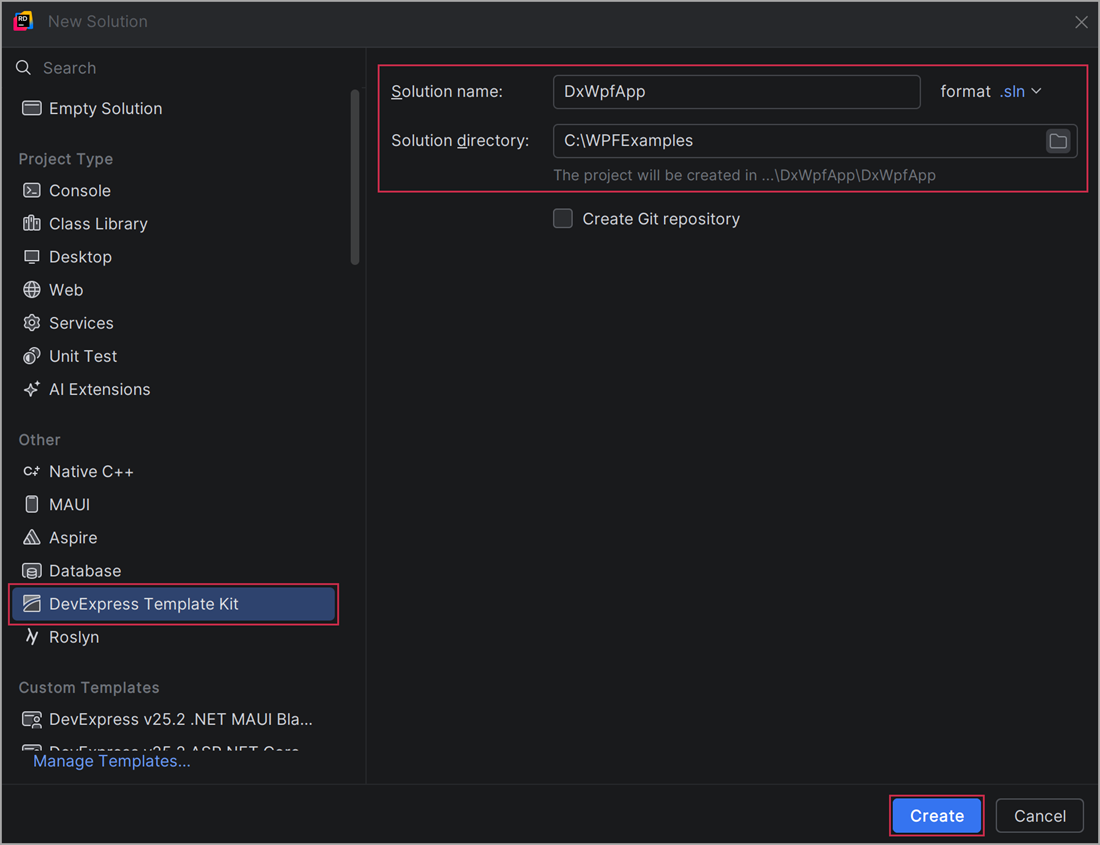
2. In the **New Solution** dialog, select **DevExpress Template Kit**, specify the solution name and location, and click **Create**.
3. In the **Template Kit** window, select the **C#** or **VB** language.

4. Select the WPF platform, configure project parameters, and click **CREATE PROJECT**.

## CLI Templates
You can use a command line interface (CLI) to create a new project or add an item to an existing project.
### Install DevExpress CLI Templates
Execute the following command to install DevExpress WPF project templates from [nuget.org](https://www.nuget.org):
- .NET CLI
dotnet new install DevExpress.WPF.ProjectTemplates
If you get the *NU1101: Unable to find package DevExpress.WPF.ProjectTemplates* error, check whether the *nuget.org* source is enabled. To get the list of sources with their status information, call the [`dotnet nuget list source`](https://learn.microsoft.com/en-us/dotnet/core/tools/dotnet-nuget-list-source) command. To enable a source, call the [`dotnet nuget enable source `](https://learn.microsoft.com/en-us/dotnet/core/tools/dotnet-nuget-enable-source) command.
If you are new to NuGet, visit the following page for information on package management prerequisites: [An Introduction to NuGet](https://learn.microsoft.com/en-us/nuget/what-is-nuget).
Note
DevExpress CLI templates are also available on [nuget.org](https://www.nuget.org).
### Create a New Project using CLI
To create a new project, use the following command template: `dotnet new `. In the Project Templates section, you can find short names and descriptions for all the available project templates.
The following command creates a blank WPF project called *DxWpfApp* in the current directory:
- .NET CLI
dotnet new dx.wpf -n DxWpfApp
You can use the following parameters to see available command options: `-?`, `-h`, `--help`.
- .NET CLI
dotnet new dx.wpf --help
dotnet new dx.wpf -h
dotnet new dx.wpf -?
### Add a New Item using CLI
To add a new item to an existing project, use the following command template: `dotnet new dx.wpf.item. --name -dxns `. In the Item Templates section, you can find short names and descriptions for all available item templates.
The following command adds a data grid item to the *DXGridControl* view within the *DxWpfApp* project:
- .NET CLI
dotnet new dx.wpf.item.datagrid --name DXGridControl -dxns DxWpfApp
### Project Templates
The following list includes project templates available in the `DevExpress.WPF.ProjectTemplates` NuGet package:
- **Application Builder**
- `dx.wpf.appbuilder`
Creates a modular (multi-view) WPF application with a predefined navigation system. The Application Builder serves as an interactive wizard:
**Step 1.** Choose the primary navigation system for your application.
**Step 2.** Select DevExpress controls. The template automatically creates separate views for each selected UI control.
- **Blank Application**
- `dx.wpf`
An application with an empty [ThemedWindow](/WPF/DevExpress.Xpf.Core.ThemedWindow).
- **MVVM Application**
- `dx.wpf.mvvm`
An application based on the Model-View-ViewModel (MVVM) architectural pattern. The application supports Dependency Injection (DI) with a sample data service injected into the view model. MVVM integration is powered by the [DevExpress MVVM Framework](/WPF/15112/mvvm-framework).
- **Ribbon-based Application**
- `dx.wpf.ribbon`
An application with a [RibbonControl](/WPF/DevExpress.Xpf.Ribbon.RibbonControl) and a [RibbonStatusBarControl](/WPF/DevExpress.Xpf.Ribbon.RibbonStatusBarControl).
- **Reporting Application**
- `dx.wpf.reporting`
An application with a [Document Viewer](/WPF/DevExpress.Xpf.Printing.DocumentPreviewControl) that displays a predefined tabular [report](/XtraReports/2162/reporting).
- [**AI Chat Application**](/WPF/405434/ai-powered-extensions/ai-chat-control#ai-chat-application)
- `dx.wpf.aichat`
A WPF chat app that integrates the AI Chat Control.
- [**AI Chat (RAG) Application**](/WPF/405434/ai-powered-extensions/ai-chat-control#ai-chat-rag-application)
- `dx.wpf.aichatrag`
A desktop WPF application with the AI Chat Control and built-in Retrieval-Augmented Generation (RAG) for document-grounded conversations.
- **BI Dashboard Viewer Application**
- `dx.wpf.dashboard`
An application with a BI Dashboard Viewer ([DashboardControl](/Dashboard/DevExpress.DashboardWpf.DashboardControl) ).
- **Office File API Application**
- `dx.wpf.officefileapi`
An application with integrated [DevExpress Office File API](/OfficeFileAPI/14911/office-file-api) support and Office-inspired UI controls, such as Rich Text Editor, Spreadsheet, and PDF Viewer. The application mimics Microsoft Office apps designed to manage files in the following formats: DOCX/RTF, XLSX/CSV, and PDF.
- **Shared WPF & .NET MAUI Application**
- `dx.wpf.maui`
A desktop app (WPF) and a mobile companion ([.NET MAUI for iOS/Android](/MAUI/403245/maui)) with a shared presentation and data layer (entity model, business logic, and data service). The applications support Dependency Injection (DI) and Model-View-ViewModel (MVVM) architectural patterns.
- **OData-based Application**
- `dx.wpf.odata`
An application with a secure data layer powered by ASP.NET Core OData, EF Core, and XAF’s [Backend Web API Service](/eXpressAppFramework/403394/backend-web-api-service). The additional layer of protection (authentication, authorization, and encryption) prevents desktop UI clients from accessing database connection information or modifying database tables directly.
- **Middle-Tier Security Application**
- `dx.wpf.middletier`
An application with a secured data layer powered by ASP.NET Core WebAPI, EF Core and XAF’s Middle-Tier Application Server (requires the [Universal subscription](https://www.devexpress.com/buy/net/)). This additional layer of protection (authentication, authorization, and encryption) prevents desktop UI clients from accessing database connection information or modifying database tables directly. Developers can also maintain an existing data context (DbContext) and business logic while establishing remote/secure connections to an RDBMS-based data store.
- **Tabbed MDI Application**
- `dx.wpf.mdi`
An application that uses the [DevExpress Module Injection Framework](/WPF/118614/mvvm-framework/mif) and a Tabbed MDI interface. A DevExpress Dock Layout Manager creates dockable tabs and navigation panels. At runtime, users can drag tabs from the main form to create individual forms.
All WPF project templates support [DevExpress themes/styles](/WPF/7406/common-concepts/themes).
### Item Templates
The following list includes item templates available in the `DevExpress.WPF.ProjectTemplates` NuGet package:
#### Common
- **View**
- `dx.wpf.item.view`
Creates a View (User Control) in an MVVM pattern.
- **View Model**
- `dx.wpf.item.viewmodel`
Creates a blank View Model in an MVVM pattern.
- **View & ViewModel**
- `dx.wpf.item.viewviewmodel`
Creates a View & ViewModel in an MVVM pattern.
- **Window**
- `dx.wpf.item.window`
Creates a new Window.
- **Ribbon Window**
- `dx.wpf.item.ribbon`
Creates a new Window with a Ribbon UI.
- **Splash Screen**
- `dx.wpf.item.splashscreen`
Creates a splash screen window that can serve as a wait indicator during a time-consuming task, such as application startup.
#### Grid
- **Data Grid**
- `dx.wpf.item.datagrid`
Creates a Data Grid.
- **Data Grid with Side Details**
- `dx.wpf.item.gridsidedetail`
Creates a Data Grid with a side panel that displays detail information for the selected item.
- **Master-Detail Data Grid**
- `dx.wpf.item.gridmasterdetail`
Creates a Data Grid with embedded detail tables.
- **Property Grid**
- `dx.wpf.item.propertygrid`
Creates a Property Grid bound to an object that contains a collection and custom property types.
- **Spreadsheet to Data Grid**
- `dx.wpf.item.spreadsheettogrid`
Creates a component that supplies Spreadsheet data to a Data Grid.
- **Pivot Table**
- `dx.wpf.item.pivot`
Creates a Pivot Grid bound to a sample data source.
- **Kanban Board**
- `dx.wpf.item.kanban`
Creates a Kanban Board (a Grid Control that uses a custom row template).
#### Tree List
- **TreeList**
- `dx.wpf.item.treelist`
Creates a Tree List bound to a hierarchical data source.
#### Chart
- **Pie Chart**
- `dx.wpf.item.piechart`
Creates a Pie Chart with a detail panel on the right-hand side.
- **Donut Chart**
- `dx.wpf.item.donutchart`
Creates a Donut Chart with a detail panel on the right-hand side.
- **Bar Chart**
- `dx.wpf.item.barchart`
Creates a Bar Chart with a detail panel on the right-hand side.
- **Stacked Bar Chart**
- `dx.wpf.item.stackedbarchart`
Creates a Stacked Bar Chart with a detail panel on the right-hand side.
- **Area Chart**
- `dx.wpf.item.areachart`
Creates an Area Chart with date range selector that uses dropdown calendars.
- **Stacked Area Chart**
- `dx.wpf.item.stackedareachart`
Creates a Stacked Area Chart with a date range slider control.
- **Diagram**
- `dx.wpf.item.diagram`
Creates a Diagram Control that displays bound data as an organizational chart.
#### Reporting & Data Analytics
- **Report**
- `dx.wpf.item.report`
Creates an empty DevExpress Report that can be customized at design time.
- **Dashboard**
- `dx.wpf.item.dashboard`
Creates an empty DevExpress Dashboard that can be customized at design time.
#### Editors
- **Edit Form**
- `dx.wpf.item.editform`
Creates a sample edit form that uses the DevExpress Layout Control to arrange individual editors and their labels.
- **Edit Form (Inline Labels)**
- `dx.wpf.item.editforminlinelabels`
Creates a sample edit form that uses the DevExpress Layout Control to arrange individual editors. Editors display inline labels.
- **Barcode Generator**
- `dx.wpf.item.barcode`
Creates a text-to-barcode converter (requires the DevExpress Office File API library).
#### Scheduler
- **Scheduler**
- `dx.wpf.item.scheduler`
Creates a Scheduler Control bound to a data source with multiple calendars.
#### Office-Inspired Controls
- **Rich Text Editor**
- `dx.wpf.item.richeditor`
Creates a Rich Text Editor with a Word document loaded asynchronously.
- **Word to PDF Converter**
- `dx.wpf.item.wordtopdf`
A module that converts a Word file to PDF.
- **Mail Merge**
- `dx.wpf.item.mailmerge`
A module that implements mail merge. Office File API binds data to a template Word document to generate an output document.
- **Spreadsheet**
- `dx.wpf.item.spreadsheet`
A Spreadsheet with an Excel document loaded asynchronously.
- **Spreadsheet Writer**
- `dx.wpf.item.populatespreadsheet`
A module that efficiently generates a large Excel file.
- **PDF Viewer**
- `dx.wpf.item.pdfviewer`
A PDF Viewer with a sample PDF document specified in a view model.
- **Excel to PDF Converter**
- `dx.wpf.item.spreadsheettopdf`
A module that converts an XLSX file to PDF.
- **Merge PDFs**
- `dx.wpf.item.mergepdf`
A module that merges two PDF files.
#### Map
- **Map**
- `dx.wpf.item.map`
Creates a Map Control with shape and pie chart vector layers.
#### Gantt
- **Gantt**
- `dx.wpf.item.gantt`
Creates a Gantt Control bound to a hierarchical data source.
#### Common Parameters for Item Templates
- **Common Parameters**
- `-dxns` / `--dx-item-namespace`
The default namespace for a newly created item and its elements.
### Additional Command Line Parameters
The following list contains available options you can specify when using DevExpress WPF templates:
- `-prerelease`, `--use-prerelease-dx-version`
- A flag that indicates if a pre-release DevExpress package version should be used in the project.
- `--framework `
- Specifies the target framework. The command expects a [target framework moniker (TFM)](https://learn.microsoft.com/en-us/dotnet/standard/frameworks). Examples: `net8.0`, `net8.0-windows`.
- `--dx-version `
- Specifies DevExpress package version to be used in the project. Examples: `24.2.3`, `25.2.*`, `25.2.*-*`
- `--language`
- Specifies a programming language for generated code files. Examples: `C#`, `VB`.
Default: `C#`
- `-preload`, `--preload-resources`
- Preload theme resources on application startup to reduce the loading time for all subsequent windows. For additional information, refer to the following help topic [Preload Theme Resources](/WPF/403439/common-concepts/themes/preload-theme-resources).
Default: `true`
- `-lwthemes`, `--lightweight-themes`
- Use DevExpress lightweight themes instead of regular themes. For additional information, refer to the following help topic: [Lightweight Themes](/WPF/404442/common-concepts/themes/lightweight-themes).
Default: `true`