# Edit Form | WPF Controls | DevExpress Documentation
The [GridControl](/WPF/DevExpress.Xpf.Grid.GridControl) includes multiple modes that allow users to edit data. Users can interact with data in individual [in-place editors](/WPF/6606/controls-and-libraries/data-grid/data-editing-and-validation/modify-cell-values/inplace-editors) or edit all cells in a row at once in the [Edit Entire Row](/WPF/401667/controls-and-libraries/data-grid/data-editing-and-validation/modify-cell-values/edit-entire-row) and **Edit Form** modes. This topic describes **Edit Form** capabilities.
The **Edit Form** contains data editors and the **Update** and **Cancel** buttons.
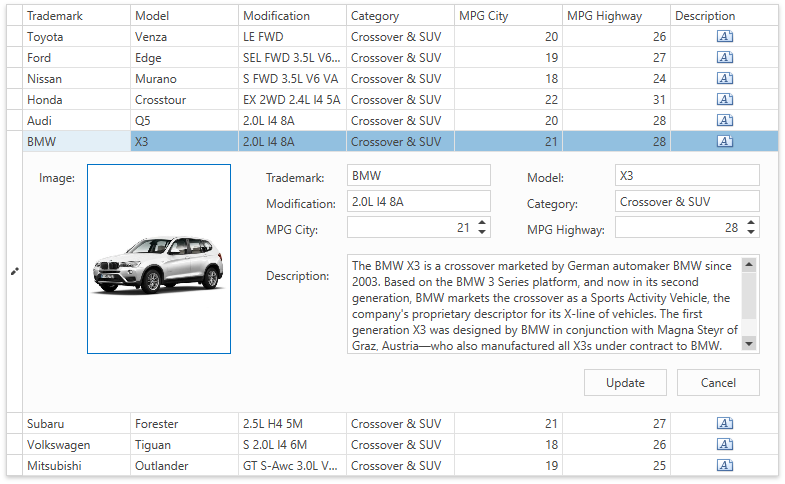
[Run Demo: Inline Edit Form](dxdemo://Wpf/DXGrid/MainDemo/InplaceEditForm)
To enable the **Edit Form** mode in the [GridControl](/WPF/DevExpress.Xpf.Grid.GridControl) and specify how the form is invoked, set the [TableView.EditFormShowMode](/WPF/DevExpress.Xpf.Grid.TableView.EditFormShowMode) / [TreeListView.EditFormShowMode](/WPF/DevExpress.Xpf.Grid.TreeListView.EditFormShowMode) property to one of the following values:
| Value | Description |
| --- | --- |
| Dialog | The View displays the Edit Form in a pop-up dialog window. |
| Inline | The View displays the Edit Form below the row that a user edits. |
| InlineHideRow | The Edit Form replaces the row that a user edits. |
| None | The Edit Form is disabled. |
You can use the following properties to specify the action that opens the **Edit Form**:
- [TableView.ShowEditFormOnDoubleClick](/WPF/DevExpress.Xpf.Grid.TableView.ShowEditFormOnDoubleClick) / [TreeListView.ShowEditFormOnDoubleClick](/WPF/DevExpress.Xpf.Grid.TreeListView.ShowEditFormOnDoubleClick)
- [TableView.ShowEditFormOnEnterKey](/WPF/DevExpress.Xpf.Grid.TableView.ShowEditFormOnEnterKey) / [TreeListView.ShowEditFormOnEnterKey](/WPF/DevExpress.Xpf.Grid.TreeListView.ShowEditFormOnEnterKey)
- [TableView.ShowEditFormOnF2Key](/WPF/DevExpress.Xpf.Grid.TableView.ShowEditFormOnF2Key) / [TreeListView.ShowEditFormOnF2Key](/WPF/DevExpress.Xpf.Grid.TreeListView.ShowEditFormOnF2Key)
The following methods allow you to show and hide the **Edit Form**:
- [TableView.ShowEditForm](/WPF/DevExpress.Xpf.Grid.TableView.ShowEditForm)/ [TreeListView.ShowEditForm](/WPF/DevExpress.Xpf.Grid.TreeListView.ShowEditForm)
- [TableView.ShowInlineEditForm](/WPF/DevExpress.Xpf.Grid.TableView.ShowInlineEditForm) / [TreeListView.ShowInlineEditForm](/WPF/DevExpress.Xpf.Grid.TreeListView.ShowInlineEditForm)
- [TableView.ShowDialogEditForm](/WPF/DevExpress.Xpf.Grid.TableView.ShowDialogEditForm) / [TreeListView.ShowDialogEditForm](/WPF/DevExpress.Xpf.Grid.TreeListView.ShowDialogEditForm)
- [TableView.CloseEditForm](/WPF/DevExpress.Xpf.Grid.TableView.CloseEditForm) / [TreeListView.CloseEditForm](/WPF/DevExpress.Xpf.Grid.TreeListView.CloseEditForm)
- [TableView.HideEditForm](/WPF/DevExpress.Xpf.Grid.TableView.HideEditForm) / [TreeListView.HideEditForm](/WPF/DevExpress.Xpf.Grid.TreeListView.HideEditForm)
## Specify Edit Form Appearance
The **Edit Form** contains editors for all visible [GridControl](/WPF/DevExpress.Xpf.Grid.GridControl) columns. The [View](/WPF/6293/controls-and-libraries/data-grid/views) arranges editors in rows from left to right in the same order as their corresponding GridControl columns. The column’s name is displayed to the left of the editor. You can use the following properties to customize the form:
| Property | Description |
| --- | --- |
| [TableView.EditFormColumnCount](/WPF/DevExpress.Xpf.Grid.TableView.EditFormColumnCount) / [TreeListView.EditFormColumnCount](/WPF/DevExpress.Xpf.Grid.TreeListView.EditFormColumnCount) | Specify the number of editors in a row. The default value is **3**. |
| [ColumnBase.EditFormVisibleIndex](/WPF/DevExpress.Xpf.Grid.ColumnBase.EditFormVisibleIndex) | Specifies the order of editors in the **Edit Form**. The default index value for each column is **0**. |
| [ColumnBase.EditFormStartNewRow](/WPF/DevExpress.Xpf.Grid.ColumnBase.EditFormStartNewRow) | Set to **true** to place the associated editor in a new row. |
| [ColumnBase.EditFormVisible](/WPF/DevExpress.Xpf.Grid.ColumnBase.EditFormVisible) | Set to **false** to exclude the associated editor from the **Edit Form**. |
| [ColumnBase.EditFormCaption](/WPF/DevExpress.Xpf.Grid.ColumnBase.EditFormCaption) | Specifies a custom editor’s caption. |
| [ColumnBase.EditFormColumnSpan](/WPF/DevExpress.Xpf.Grid.ColumnBase.EditFormColumnSpan) / [ColumnBase.EditFormRowSpan](/WPF/DevExpress.Xpf.Grid.ColumnBase.EditFormRowSpan) | Resize the associated editor. |
| [TableView.EditFormCaptionBinding](/WPF/DevExpress.Xpf.Grid.TableView.EditFormCaptionBinding) / [TreeListView.EditFormCaptionBinding](/WPF/DevExpress.Xpf.Grid.TreeListView.EditFormCaptionBinding) | Specify a custom window’s title in the **Dialog** display mode. |
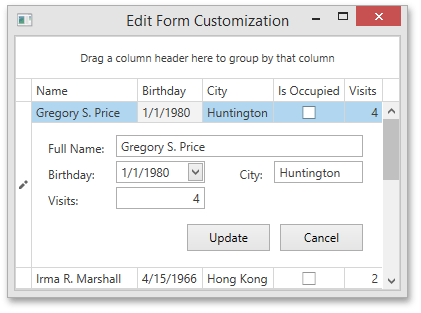
In the code sample below, the **Edit Form** arranges editors into two columns, hides the **IsOccupied** editor, and changes the caption of the **Name** editor to **Full Name**:
- XAML
<dxg:GridControl ItemsSource="{Binding Data}">
    <dxg:GridControl.View>
        <dxg:TableView EditFormColumnCount="2" EditFormShowMode="Inline" />
    </dxg:GridControl.View>
    <dxg:GridColumn FieldName="Name" EditFormCaption="Full Name:" EditFormColumnSpan="2" />
    <dxg:GridColumn FieldName="Birthday" />
    <dxg:GridColumn FieldName="City" />
    <dxg:GridColumn FieldName="IsOccupied" EditFormVisible="False" />
    <dxg:GridColumn FieldName="Visits" />
</dxg:GridControl>
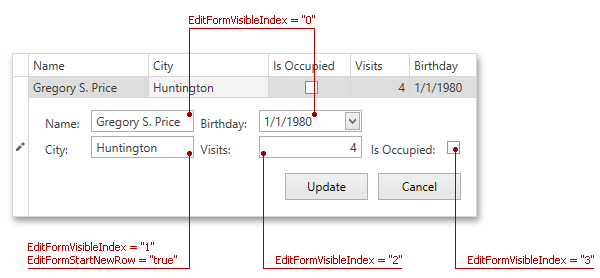
The following code sample displays editors in a custom order. The first row contains the **Name** and **Birthday** editors that have the default [ColumnBase.EditFormVisibleIndex](/WPF/DevExpress.Xpf.Grid.ColumnBase.EditFormVisibleIndex) value, and the second contains the **City**, **Visits**, and **IsOccupied** editors that have indexes from 1 to 3, respectively:
- XAML
<dxg:GridControl ItemsSource="{Binding Data}">
    <dxg:GridControl.View>
        <dxg:TableView EditFormShowMode="Inline" />
    </dxg:GridControl.View>
    <dxg:GridColumn FieldName="Name" />
    <dxg:GridColumn FieldName="City" EditFormVisibleIndex="1" EditFormStartNewRow="True" />
    <dxg:GridColumn FieldName="IsOccupied" EditFormVisibleIndex="3"/>
    <dxg:GridColumn FieldName="Visits" EditFormVisibleIndex="2" />
    <dxg:GridColumn FieldName="Birthday" />
</dxg:GridControl>
### Define Edit Form Template
Define a template and attach it to the [TableView.EditFormTemplate](/WPF/DevExpress.Xpf.Grid.TableView.EditFormTemplate) / [TreeListView.EditFormTemplate](/WPF/DevExpress.Xpf.Grid.TreeListView.EditFormTemplate) property to specify **Edit Form** appearance. You can also use the [ColumnBase.EditFormTemplate](/WPF/DevExpress.Xpf.Grid.ColumnBase.EditFormTemplate) property to customize an editor associated with the column.
The [GridControl](/WPF/DevExpress.Xpf.Grid.GridControl) does not raise the [TableView.RowEditStarted](/WPF/DevExpress.Xpf.Grid.TableView.RowEditStarted) event (and does not execute the corresponding [TableView.RowEditStartedCommand](/WPF/DevExpress.Xpf.Grid.TableView.RowEditStartedCommand)) when you define a custom **Edit Form** template. To prevent this behavior, attach the following [EventToCommand](/WPF/DevExpress.Mvvm.UI.EventToCommand) to the root element of the template:
- XAML
<dxg:TableView.EditFormTemplate>
    <DataTemplate>
        <GroupBox>
            <dxmvvm:Interaction.Behaviors>
                <dxmvvm:EventToCommand EventName="Loaded" Command="{Binding EditFormLoadedCommand}"/>
            </dxmvvm:Interaction.Behaviors>
        <!-- ... -->
The [TableView.EditFormDialogServiceTemplate](/WPF/DevExpress.Xpf.Grid.TableView.EditFormDialogServiceTemplate) / [TreeListView.EditFormDialogServiceTemplate](/WPF/DevExpress.Xpf.Grid.TreeListView.EditFormDialogServiceTemplate) property allows you to customize the Edit Form window in **Dialog** show mode. Refer to the property description for mode information and examples.
## Process Edit Operations
### Allow or Suppress Edit Operations
Set the [DataViewBase.AllowEditing](/WPF/DevExpress.Xpf.Grid.DataViewBase.AllowEditing) property to **false** to suppress edit operations in the **Edit Form**. You can also specify the [ColumnBase.AllowEditing](/WPF/DevExpress.Xpf.Grid.ColumnBase.AllowEditing) property to allow or suppress edit operations in a certain column. If this property contains the **Default** value, then edit operations depend on [View](/WPF/6293/controls-and-libraries/data-grid/views) settings.
### Configure Post Operation Settings
If you want to instantly post changes to the data source, set the [TableView.EditFormPostMode](/WPF/DevExpress.Xpf.Grid.TableView.EditFormPostMode) / [TreeListView.EditFormPostMode](/WPF/DevExpress.Xpf.Grid.TreeListView.EditFormPostMode) property to [Immediate](/WPF/DevExpress.Xpf.Grid.EditFormPostMode).
Set this property to [Cached](/WPF/DevExpress.Xpf.Grid.EditFormPostMode) to apply changes only after a user clicks **Update** or presses Ctrl+Enter.
Users need to click **Cancel** or press Esc to discard unsaved changes. If the **Edit Form** contains unsaved changes and loses focus, you can display a confirmation dialog. Use the [TableView.EditFormPostConfirmation](/WPF/DevExpress.Xpf.Grid.TableView.EditFormPostConfirmation) / [TreeListView.EditFormPostConfirmation](/WPF/DevExpress.Xpf.Grid.TreeListView.EditFormPostConfirmation) property to specify the dialog window.
### Execute Actions Before Edit Form is Opened
You can suppress the **Edit Form** or specify editor settings (for example, make an editor read-only or initialize a cell value). Handle the following events to do this:
- [TableView.RowEditStarting](/WPF/DevExpress.Xpf.Grid.TableView.RowEditStarting)
- [TreeListView.NodeEditStarting](/WPF/DevExpress.Xpf.Grid.TreeListView.NodeEditStarting)
If you want to maintain a clean MVVM pattern and process the start of the edit operation in a View Model, create a command and bind it to one of the properties below:
- [TableView.RowEditStartingCommand](/WPF/DevExpress.Xpf.Grid.TableView.RowEditStartingCommand)
- [TreeListView.NodeEditStartingCommand](/WPF/DevExpress.Xpf.Grid.TreeListView.NodeEditStartingCommand)
The following code sample specifies settings for the row that contains information about employees. For example, you can initialize the **ID** editor (**CellEditors[0]** in code) and make the **Department** editor (**CellEditors[4]**) read-only for new rows.

- C#
- VB.NET
private void OnRowEditStarting(object sender, RowEditStartingEventArgs e) {
    if(Equals(e.RowHandle, DataControlBase.NewItemRowHandle)) {
        e.CellEditors[0].Value = grid.VisibleRowCount + 1;
        e.CellEditors[4].ReadOnly = true;

    } else {
        e.CellEditors[0].ReadOnly = true;
        e.CellEditors[4].ReadOnly = false;
    }
}
Private Sub OnRowEditStarting(ByVal sender As Object, ByVal e As RowEditStartingEventArgs)
    If Equals(e.RowHandle, DataControlBase.NewItemRowHandle) Then
        e.CellEditors(0).Value = Me.grid.VisibleRowCount + 1
        e.CellEditors(4).ReadOnly = True
    Else
        e.CellEditors(0).ReadOnly = True
        e.CellEditors(4).ReadOnly = False
    End If
End Sub
[View Example: Data Grid for WPF - How to Specify Edit Form Settings](https://github.com/DevExpress-Examples/wpf-data-grid-specify-edit-form-settings)
### Execute Actions After Edit Form is Opened
You can specify custom logic that is executed when a user edits a row. To do so, handle the following events:
- [TableView.RowEditStarted](/WPF/DevExpress.Xpf.Grid.TableView.RowEditStarted)
- [TreeListView.NodeEditStarted](/WPF/DevExpress.Xpf.Grid.TreeListView.NodeEditStarted)
If you want to maintain a clean MVVM pattern and process the edit operation in a View Model, create a command and bind it to one of the properties below:
- [TableView.RowEditStartedCommand](/WPF/DevExpress.Xpf.Grid.TableView.RowEditStartedCommand)
- [TreeListView.NodeEditStartedCommand](/WPF/DevExpress.Xpf.Grid.TreeListView.NodeEditStartedCommand)
### Execute Actions After Edit Form is Closed
You can specify custom logic that is executed after a user has closed the **Edit Form**. Handle the following events to do this:
- [TableView.RowEditFinished](/WPF/DevExpress.Xpf.Grid.TableView.RowEditFinished)
- [TreeListView.NodeEditFinished](/WPF/DevExpress.Xpf.Grid.TreeListView.NodeEditFinished)
If you want to maintain a clean MVVM pattern and process the edit operation in a View Model, create a command and bind it to one of the properties below:
- [TableView.RowEditFinishedCommand](/WPF/DevExpress.Xpf.Grid.TableView.RowEditFinishedCommand)
- [TreeListView.NodeEditFinishedCommand](/WPF/DevExpress.Xpf.Grid.TreeListView.NodeEditFinishedCommand)
The following example uses the **RowEditStarted** and **RowEditFinished** events to pause data updates in the **Edit Form**:
[View Example: Data Grid for WPF - How to Pause Data Updates in the Edit Form](https://github.com/DevExpress-Examples/wpf-data-grid-edit-form-pause-updates)
### Process Editor Value Changes
Handle the following events to instantly respond to cell value changes within an **Edit Form** editor:
- [GridViewBase.CellValueChanging](/WPF/DevExpress.Xpf.Grid.GridViewBase.CellValueChanging)
- [TreeListView.CellValueChanging](/WPF/DevExpress.Xpf.Grid.TreeListView.CellValueChanging)
If you want to maintain a clean MVVM pattern and process cell value edits in a View Model, create a command and bind it to one of the properties below:
- [TableView.CellValueChangingCommand](/WPF/DevExpress.Xpf.Grid.GridViewBase.CellValueChangingCommand)
- [TreeListView.CellValueChangingCommand](/WPF/DevExpress.Xpf.Grid.TreeListView.CellValueChangingCommand)
The following code sample makes the **Price** editor read-only depending on the **CanEdit** value and assigns the result of **Price** and **Amount** multiplication to the **PositionValue** editor.
- C#
- VB.NET
void OnEditFormCellValueChanging(object sender, CellValueChangedEventArgs e) {
// ...
    if(e.Cell.Property == nameof(DataItem.CanEdit)) {
        var priceData = editFormArgs.CellEditors.FirstOrDefault(x => x.FieldName == nameof(DataItem.Price));
        priceData.ReadOnly = !bool.Parse(e.Cell.Value.ToString());
        return;
    }

    if(e.Cell.Property == nameof(DataItem.Price)) {
        var positionValueData = editFormArgs.CellEditors.First(d => d.FieldName == nameof(DataItem.PositionValue));
        var amountData = editFormArgs.CellEditors.First(d => d.FieldName == nameof(DataItem.Amount));

        int price = 0;

        int.TryParse((string)e.Value, out price);
        positionValueData.Value = (int)amountData.Value * price;
    }
}
Private Sub OnEditFormCellValueChanging(ByVal sender As Object, ByVal e As CellValueChangedEventArgs)
' ...
    If Equals(e.Cell.[Property], NameOf(DataItem.CanEdit)) Then
        Dim priceData = editFormArgs.CellEditors.FirstOrDefault(Function(x) Equals(x.FieldName, NameOf(DataItem.Price)))
        priceData.[ReadOnly] = Not Boolean.Parse(e.Cell.Value.ToString())
        Return
    End If

    If Equals(e.Cell.[Property], NameOf(DataItem.Price)) Then
        Dim positionValueData = editFormArgs.CellEditors.First(Function(d) Equals(d.FieldName, NameOf(DataItem.PositionValue)))
        Dim amountData = editFormArgs.CellEditors.First(Function(d) Equals(d.FieldName, NameOf(DataItem.Amount)))
        Dim price As Integer = 0
        Call Integer.TryParse(CStr(e.Value), price)
        positionValueData.Value = CInt(amountData.Value) * price
    End If
End Sub
[View Example: Data Grid for WPF - How to Process Related Cells in the Edit Form](https://github.com/DevExpress-Examples/wpf-data-grid-edit-form-related-cells)
## Limitations
You cannot use the following events to process edit operations in the **Edit Form**:
- [GridViewBase.ShowingEditor](/WPF/DevExpress.Xpf.Grid.GridViewBase.ShowingEditor) / [TreeListView.ShowingEditor](/WPF/DevExpress.Xpf.Grid.TreeListView.ShowingEditor)
- [GridViewBase.ShownEditor](/WPF/DevExpress.Xpf.Grid.GridViewBase.ShownEditor) / [TreeListView.ShownEditor](/WPF/DevExpress.Xpf.Grid.TreeListView.ShownEditor)
- [GridViewBase.HiddenEditor](/WPF/DevExpress.Xpf.Grid.GridViewBase.HiddenEditor) / [TreeListView.HiddenEditor](/WPF/DevExpress.Xpf.Grid.TreeListView.HiddenEditor)
- [GridViewBase.RowCanceled](/WPF/DevExpress.Xpf.Grid.GridViewBase.RowCanceled) / [TreeListView.NodeCanceled](/WPF/DevExpress.Xpf.Grid.TreeListView.NodeCanceled)
- [GridViewBase.CellValueChanged](/WPF/DevExpress.Xpf.Grid.GridViewBase.CellValueChanged) / [TreeListView.CellValueChanged](/WPF/DevExpress.Xpf.Grid.TreeListView.CellValueChanged)
The **Edit Form** is available in [optimized mode](/WPF/17112/controls-and-libraries/data-grid/performance-improvement/optimized-mode) only.
## Edit Data in Server Mode and Instant Feedback Sources
[Server Mode and Instant Feedback](/WPF/6279/controls-and-libraries/data-grid/bind-to-data/server-mode-and-instant-feedback-mode) sources do not support edit operations out-of-the-box. You need to use a [DialogEditFormBehavior](/WPF/DevExpress.Xpf.Grid.DialogEditFormBehavior) that allows users to invoke the **Edit Form** where they can modify row values.