# Collection Definitions | WPF Controls | DevExpress Documentation
**Collection definitions** allow you to customize the appearance of collection properties within the **PropertyGrid** control. Each **collection definition** is linked to one or multiple collection properties of a bound object. The [PropertyGridControl.PropertyDefinitions](/WPF/DevExpress.Xpf.PropertyGrid.PropertyGridControl.PropertyDefinitions) collection stores [CollectionDefinition](/WPF/DevExpress.Xpf.PropertyGrid.CollectionDefinition) objects.
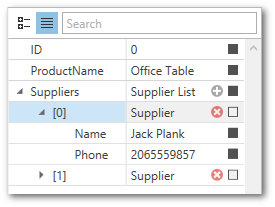
The image below shows a **collection definition** that is linked to the `Suppliers` collection property of the bound object. The **collection definition** includes two **property definitions** linked to the `Name` and `Phone` properties of the collection items.
## Link Collection Properties to Definitions
You can use association criteria to link a collection property to a **collection definition**. Each criterion or combination of criteria has a priority. The **PropertyGrid** control links a collection property to the definition that has the highest priority.
| Criteria | Priority | Description |
| --- | --- | --- |
| Collection property path | High | Use the [PropertyDefinitionBase.Path](/WPF/DevExpress.Xpf.PropertyGrid.PropertyDefinitionBase.Path) property to specify the direct path to the associated property. |
| Parent property path | Medium | Use the [PropertyDefinition.Scope](/WPF/DevExpress.Xpf.PropertyGrid.PropertyDefinition.Scope) property to specify the path to the parent property. |
| Collection property type | Low | Use the [PropertyDefinition.Type](/WPF/DevExpress.Xpf.PropertyGrid.PropertyDefinition.Type) property to specify the type of the associated collection property.
The [PropertyDefinition.TypeMatchMode](/WPF/DevExpress.Xpf.PropertyGrid.PropertyDefinition.TypeMatchMode) property specifies the rules of type matching. See [TypeMatchMode](/WPF/DevExpress.Xpf.PropertyGrid.TypeMatchMode) to learn more. |
Note
**Collection definitions** have higher priority than **property definitions** when you link them to collection properties, unless a **property definition** specifies the `path` to the collection property.
The following example demonstrates a declaration of a **collection definition**.
- XAML
<dxprg:CollectionDefinition Path="Suppliers">
    <dxprg:PropertyDefinition Path="*.Name"/>
    <dxprg:PropertyDefinition Path="*.Phone"/>
</dxprg:CollectionDefinition>
## Display Collections Within the PropertyGrid Control
The **PropertyGrid** control does not display collection item properties if you set the [PropertyGridControl.ShowProperties](/WPF/DevExpress.Xpf.PropertyGrid.PropertyGridControl.ShowProperties) property to `WithPropertyDefinitions`. In this case, you should manually specify definitions for these properties.
This example demonstrates a property grid that is configured as follows:
- The property grid displays all public properties of the bound object.
- Only `string` properties are displayed within the collection items.
- MainWindow.xaml
- ViewModel.cs
- Supplier.cs
<Window.DataContext>
    <local:ViewModel/>
</Window.DataContext>
...
<dxprg:PropertyGridControl SelectedObject="{Binding DemoProduct}" ShowProperties="WithPropertyDefinitions">

    <dxprg:CollectionDefinition Path="Suppliers">
        <!--Associated with the String properties of Supplier objects-->
        <dxprg:PropertyDefinition Type="sys:String"/>
    </dxprg:CollectionDefinition>

    <!--Links to all public properties of the Product object-->
    <dxprg:PropertyDefinition Path="*"/>

</dxprg:PropertyGridControl>
public class ViewModel {
    public Product DemoProduct { get; set; }
    public ViewModel() {
        DemoProduct = new Product()
        {
            ID = 0,
            ProductName = "Office Table",
            Suppliers = new SupplierList
            {
                new Supplier() { ID = 0, Name = "Jack Plank", Phone = "2065559857" },
                new Supplier() { ID = 1, Name = "Elsa Lynch", Phone = "2065551189" }
            }
        };
    }
}
public class Product {
    public int ID { get; set; }
    public string ProductName { get; set; }
    public SupplierList Suppliers { get; set; }
}

public class Supplier {
    public int ID { get; set; }
    public string Name { get; set; }
    public string Phone { get; set; }
}

public class SupplierList : List<Supplier> {
    public SupplierList() : base() { }
    public override string ToString() {
        return "Supplier List";
    }
}

## Edit the Collection
The **PropertyGrid** control features the built-in collection editor. The collection editor allows users to perform the following operations:
- View and edit collection items.
- Add items to the collection.
- Remove items from the collection.
The collection editor displays the **Add Item** and **Remove Item** collection buttons:
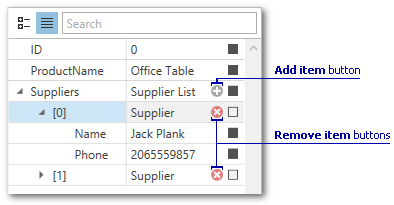
The following properties specify whether the collection editor is used. Set these properties to `false` to display the collection definition as a [property definition](/WPF/15521/controls-and-libraries/property-grid/property-definitions). In this case, the [PropertyGridControl](/WPF/DevExpress.Xpf.PropertyGrid.PropertyGridControl) does not display expand and **Add**/**Remove** buttons.
| Property name | Property description |
| --- | --- |
| [PropertyGridControl.UseCollectionEditor](/WPF/DevExpress.Xpf.PropertyGrid.PropertyGridControl.UseCollectionEditor) | Toggles collection editing for the entire property grid. |
| [CollectionDefinition.UseCollectionEditor](/WPF/DevExpress.Xpf.PropertyGrid.CollectionDefinition.UseCollectionEditor) | Toggles collection editing for individual collections. |
### New Item Initializers
Use a New Item Initializer to create new collection items. New Item Initializers allow you to do the following:
- Specify default property values
- Create objects that don’t declare a default constructor
- Configure the [new item menu](/WPF/15631/controls-and-libraries/property-grid/visual-elements/grid-menus#new-item-menu) that allows users to add objects of different types to a collection
Use the [CollectionDefinition.NewItemInitializer](/WPF/DevExpress.Xpf.PropertyGrid.CollectionDefinition.NewItemInitializer) property and the [XamlInitializer](/WPF/DevExpress.Xpf.PropertyGrid.XamlInitializer) class to assign an Initializer to a specific collection or to the entire control.
The code sample below demonstrates how to initialize new items in a collection of `Supplier` objects.
- XAML
<Window.Resources>
    <dxprg:XamlInitializer Initialize="XamlInitializer_Initialize" x:Key="xamlInitializer">
        <dxprg:TypeDefinition Type="{x:Type local:Supplier}"
                              Name="Supplier" Description="New Supplier"/>
    </dxprg:XamlInitializer>
</Window.Resources>
<Grid>
<!-- ... -->
    <dxprg:PropertyGridControl Name="pGrid"
                               SelectedObject="{Binding Path=CurrentItem, ElementName=grid}"
                               Grid.Column="1" ShowCategories="False"
                               CellValueChanged="pGrid_CellValueChanged" >
        <dxprg:CollectionDefinition Path="Suppliers"
                                    NewItemInitializer="{StaticResource xamlInitializer}" >
        </dxprg:CollectionDefinition>
    </dxprg:PropertyGridControl>
</Grid>
A New Item Initializer also allows you to initialize new [Dictionary<TKey,TValue>](https://learn.microsoft.com/dotnet/api/system.collections.generic.dictionary-2) items. To do this, follow these steps:
1. Create a class that implements the `IInstanceInitializer` interface and pass it to the [CollectionDefinition.NewItemInitializer](/WPF/DevExpress.Xpf.PropertyGrid.CollectionDefinition.NewItemInitializer) property.
2. Implement the [CreateInstance](/CoreLibraries/DevExpress.Mvvm.DataAnnotations.NewItemInstanceInitializerAttribute.CreateInstance%28System.ComponentModel.ITypeDescriptorContext-System.Collections.IEnumerable%29) method to create a new dictionary item.
[View Example: How to: Add an Item to a Collection or a Dictionary](https://github.com/DevExpress-Examples/wpf-propertygrid-add-an-item-to-a-collection-or-a-dictionary)
## Customize Collection Button Visibility
The [PropertyGridControl](/WPF/DevExpress.Xpf.PropertyGrid.PropertyGridControl) displays the **Add Item** and **Remove Item** buttons for collections that support both add and remove operations.
Set the [CollectionDefinition.AllowRemoveItemsWithoutNewItemInitializer](/WPF/DevExpress.Xpf.PropertyGrid.CollectionDefinition.AllowRemoveItemsWithoutNewItemInitializer) property to `true` to display **Remove** buttons for a collection that supports remove operations only (such collection items do not have the default public constructor or new item initializers).
The [CollectionDefinition.AllowAddItems](/WPF/DevExpress.Xpf.PropertyGrid.CollectionDefinition.AllowAddItems) and [CollectionDefinition.AllowRemoveItems](/WPF/DevExpress.Xpf.PropertyGrid.CollectionDefinition.AllowRemoveItems) properties allow you to hide **Add** and **Remove** buttons.
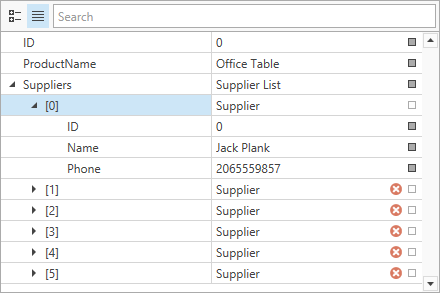
You can implement custom logic to show and hide collection buttons. To do this, handle the [PropertyGridControl.CollectionButtonsVisibility](/WPF/DevExpress.Xpf.PropertyGrid.PropertyGridControl.CollectionButtonsVisibility) event. The following code sample hides the **Add** button if the collection includes more then 5 items and hides the **Remove** button for the collection item whose ID is 0:
- XAML
<dxprg:PropertyGridControl SelectedObject="{Binding DemoProduct}"
                           CollectionButtonsVisibility="OnCollectionButtonsVisibility"/>
- C#
- VB.NET
using DevExpress.Xpf.PropertyGrid;
// ...

void OnCollectionButtonsVisibility(object sender, CollectionButtonsVisibilityEventArgs e) {
    if (e.ButtonKind == CollectionButtonKind.Add) {
        var collection = (SupplierList)e.Value;
        e.IsVisible = collection.Count <= 5;
    }
    if (e.ButtonKind == CollectionButtonKind.Remove) {
        var supplier = e.Value as Supplier;
        if (supplier != null && supplier.ID == 0)
            e.IsVisible = false;
    }
}
Imports DevExpress.Xpf.PropertyGrid
' ...

Private Sub OnCollectionButtonsVisibility(ByVal sender As Object, ByVal e As CollectionButtonsVisibilityEventArgs)
    If e.ButtonKind = CollectionButtonKind.Add Then
        Dim collection = CType(e.Value, SupplierList)
        e.IsVisible = collection.Count <= 5
    End If

    If e.ButtonKind = CollectionButtonKind.Remove Then
        Dim supplier = TryCast(e.Value, Supplier)
        If supplier IsNot Nothing AndAlso supplier.ID = 0 Then e.IsVisible = False
    End If
End Sub
## Customize Collection Button Behavior
Handle the [PropertyGridControl.CollectionButtonClick](/WPF/DevExpress.Xpf.PropertyGrid.PropertyGridControl.CollectionButtonClick) event to execute a custom action when a user clicks a collection button. For example, you can add a new item whose values depend on the other item’s values.
The following code sample adds a new item with the specified ID property when a user clicks the **Add Item** button:
- XAML
<dxprg:PropertyGridControl SelectedObject="{Binding DemoProduct}"
                           CollectionButtonClick="OnCollectionButtonClick"/>
- C#
- VB.NET
using DevExpress.Xpf.PropertyGrid;
// ...

void OnCollectionButtonClick(object sender, CollectionButtonClickEventArgs e) {
    if (e.ButtonKind == CollectionButtonKind.Add) {
        var collection = (SupplierList)e.Value;
        e.DefaultAction(new Supplier() { ID = collection.Count == 0 ? 0 : collection.Max(x => x.ID) + 1, Name = "", Phone = "" });
        e.Handled = true;
    }
}
Imports DevExpress.Xpf.PropertyGrid
' ...

Private Sub OnCollectionButtonClick(ByVal sender As Object, ByVal e As CollectionButtonClickEventArgs)
    If e.ButtonKind = CollectionButtonKind.Add Then
        Dim collection = CType(e.Value, SupplierList)
        e.DefaultAction(New Supplier() With {
            .ID = If(collection.Count = 0, 0, collection.Max(Function(x) x.ID) + 1),
            .Name = "",
            .Phone = ""
        })
        e.Handled = True
    End If
End Sub
See Also
[Expandability Customization](/WPF/117149/controls-and-libraries/property-grid/expandability-customization)
[Property Menu](/WPF/15720/controls-and-libraries/property-grid/property-menu)
[Managing Collection Properties](/WPF/15718/controls-and-libraries/property-grid/getting-started/managing-collection-properties)
[Specify Custom Collection Edit Actions](https://github.com/DevExpress-Examples/wpf-property-grid-specify-custom-collection-edit-actions)