# Formatting Values Using Icon Sets | WPF Controls | DevExpress Documentation
The **Icon Sets** conditional format allows you to use predefined or custom icon sets to format different value ranges.
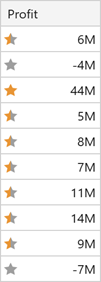
The image below shows a grid column whose *Profit* cells contain icons corresponding to numeric values.
## Add Rules in Code
Create the [IconSetFormatCondition](/WPF/DevExpress.Xpf.Grid.IconSetFormatCondition) class instance and specify the following settings to create a conditional format in code:
- Use the [FormatConditionBase.FieldName](/WPF/DevExpress.Xpf.Grid.FormatConditionBase.FieldName) property to specify the column’s field name to which the conditional format should apply.
- Formatting cells/rows are based on single column values by default. Use the [FormatConditionBase.Expression](/WPF/DevExpress.Xpf.Grid.FormatConditionBase.Expression) property to specify a complex custom expression that returns a value based on several parameters (for example, several columns in a row).
- Specify the target cells’ formatting:
- Use the [FormatConditionBase.PredefinedFormatName](/WPF/DevExpress.Xpf.Grid.FormatConditionBase.PredefinedFormatName) property to specify the predefined format.
- Set the custom format using the [IconSetFormatCondition.Format](/WPF/DevExpress.Xpf.Grid.IconSetFormatCondition.Format) property.
- Set a selective expression using the [IndicatorFormatConditionBase.SelectiveExpression](/WPF/DevExpress.Xpf.Grid.IndicatorFormatConditionBase.SelectiveExpression) property if it is necessary to select data records to which the rule should apply.
- Add the resulting [IconSetFormatCondition](/WPF/DevExpress.Xpf.Grid.IconSetFormatCondition) instance to the [TableView.FormatConditions](/WPF/DevExpress.Xpf.Grid.TableView.FormatConditions) (or [TreeListView.FormatConditions](/WPF/DevExpress.Xpf.Grid.TreeListView.FormatConditions)) collection.
The following code sample illustrates how to define a conditional format in markup:
- XAML
<dxg:TableView.FormatConditions>
   <dxg:IconSetFormatCondition FieldName="Profit" PredefinedFormatName="Stars3IconSet"/>
</dxg:TableView.FormatConditions>
The code sample below illustrates how to define the same conditional format in code-behind:
- C#
- VB.NET
var profitFormatCondition = new IconSetFormatCondition() {
   FieldName = "Profit",
   PredefinedFormatName = "Stars3IconSet"
};
view.FormatConditions.Add(profitFormatCondition);
Dim profitFormatCondition = New IconSetFormatCondition() With {
   .FieldName = "Profit",
   .PredefinedFormatName = "Stars3IconSet"
}
view.FormatConditions.Add(profitFormatCondition)
### Define Custom Rules and Icons
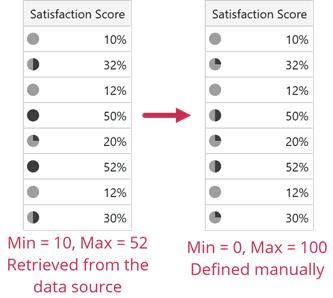
The [IconSetFormatCondition](/WPF/DevExpress.Xpf.Grid.IconSetFormatCondition) chooses the icon based on the minimum and maximum values from your data source. You can use the [IconSetFormatCondition.MinValue](/WPF/DevExpress.Xpf.Grid.IndicatorFormatConditionBase.MinValue) and [IconSetFormatCondition.MaxValue](/WPF/DevExpress.Xpf.Grid.IndicatorFormatConditionBase.MaxValue) properties to define custom minimum and maximum values for the format condition:
- XAML
<dxg:TableView.FormatConditions>
   <dxg:IconSetFormatCondition FieldName="SatisfactionScore"
                               PredefinedFormatName="Quarters5IconSet"
                               MinValue="0" MaxValue="1"/>
</dxg:TableView.FormatConditions>
<!-- ... -->
<dxg:GridColumn FieldName="SatisfactionScore">
   <dxg:GridColumn.EditSettings>
      <dxe:TextEditSettings MaskType="Numeric"
                            Mask="p0"
                            MaskUseAsDisplayFormat="True"/>
   </dxg:GridColumn.EditSettings>
</dxg:GridColumn>
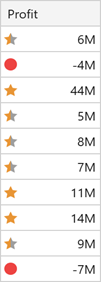
The [IconSetFormat](/WPF/DevExpress.Xpf.Core.ConditionalFormatting.IconSetFormat) object allows you to specify custom icons and display rules:
- XAML
<dxg:IconSetFormatCondition FieldName="Profit">
   <dxg:IconSetFormatCondition.Format>
      <dx:IconSetFormat ElementThresholdType="Number">
         <dx:IconSetElement Threshold="-20" Icon="{dx:IconSet Name=RedToBlack4_1}"/>
         <dx:IconSetElement Threshold="0" Icon="{dx:IconSet Name=Stars3_2}"/>
         <dx:IconSetElement Threshold="10" Icon="{dx:IconSet Name=Stars3_1}"/>
      </dx:IconSetFormat>
   </dxg:IconSetFormatCondition.Format>
</dxg:IconSetFormatCondition>
Use the [IconSetElement.Threshold](/WPF/DevExpress.Xpf.Core.ConditionalFormatting.IconSetElement.Threshold) property to specify the minimum value required to display the icon. The [IconSetFormat.ElementThresholdType](/WPF/DevExpress.Xpf.Core.ConditionalFormatting.IconSetFormat.ElementThresholdType) property specifies whether this value is a number or a percent relative to the minimum and maximum values in your data source.
## Add Rules Using Conditional Formatting Menu
1. Select the **Icon Sets** item in the [Conditional Formatting Menu](/WPF/114000/controls-and-libraries/data-grid/conditional-formatting/creating-conditional-formatting-rules/conditional-formatting-menu).
2. Choose the required icon set in the invoked sub menu. The conditional formatting menu allows you to use only predefined **Icon Sets** formats stored within the [TableView.PredefinedIconSetFormats](/WPF/DevExpress.Xpf.Grid.TableView.PredefinedIconSetFormats) (or [TreeListView.PredefinedIconSetFormats](/WPF/DevExpress.Xpf.Grid.TreeListView.PredefinedIconSetFormats)) collection.

## Add Rules Using Conditional Formatting Rules Manager
1. Click the **New Rule…** in the [Conditional Formatting Rules Manager](/WPF/113996/controls-and-libraries/data-grid/conditional-formatting/creating-conditional-formatting-rules/conditional-formatting-rules-manager).
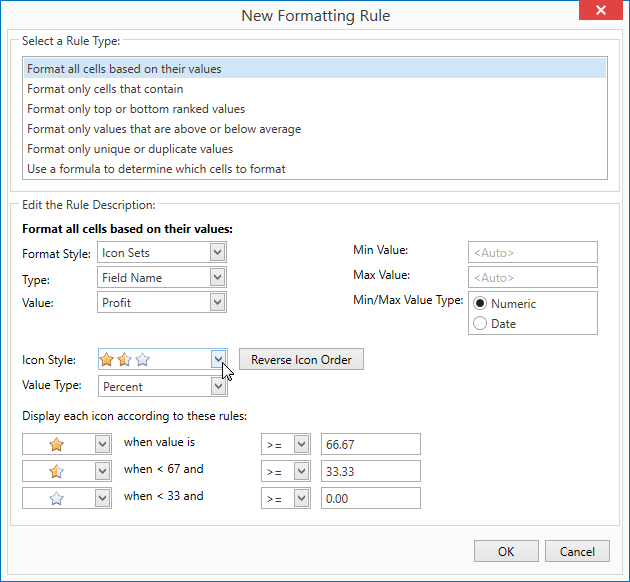
2. Select the **Format all cells based on their values** rule type in the invoked **New Formatting Rule** dialog.
3. Select the **Icon Sets** format style.
4. Specify the **Type** and **Value** fields. These options determine the conditional values on which cells/rows formatting is based.
- To format cells/rows based on single column values, choose the **Filed Name** value in the **Type** field, and choose the required column field name in the **Value** field.
- To specify a complex custom expression that returns a value based on several parameters (for example, several columns in a row), choose the **Expression** value in the **Type** field, and determine the required [expression](/WPF/7380/common-concepts/expressions) in the **Value** field using the **Custom Condition Editor**.
5. Specify the **Min Value** and **Max Value** fields to determine the range of values used in formatting. These fields are optional. The range is calculated automatically based on maximum and minimum values from cell values by default.
6. Specify the **Icon Style** field to define the visual appearance of the applied rule. You can set the rules to determine how to display icons.
See Also
[Conditional Formats](/WPF/114012/controls-and-libraries/data-grid/conditional-formatting/conditional-formats)
[Conditional Formatting Menu](/WPF/114000/controls-and-libraries/data-grid/conditional-formatting/creating-conditional-formatting-rules/conditional-formatting-menu)
[Conditional Formatting Rules Manager](/WPF/113996/controls-and-libraries/data-grid/conditional-formatting/creating-conditional-formatting-rules/conditional-formatting-rules-manager)