# Exporting in the Web Dashboard | Business Intelligence Dashboard | DevExpress Documentation
The Web Dashboard control allows users to export an entire [dashboard](/Dashboard/116503/basic-concepts-and-terminology/dashboard) or individual [dashboard items](/Dashboard/116521/basic-concepts-and-terminology/dashboard-items). You can export the dashboard/dashboard items to PDF and Image formats. Additionally, you can export dashboard item data to Excel/CSV. To learn more about basic exporting capabilities, see [Printing and Exporting](/Dashboard/15181/common-features/printing-and-exporting).
## Export Dashboards in the UI
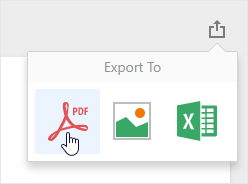
To export the entire dashboard, click the  button in the [dashboard title](/Dashboard/117383/web-dashboard/ui-elements-and-customization/dashboard-title) and choose the format.
Note
You can export only dashboard items when the Web Dashboard displays dashboards on [mobile phones](/Dashboard/119662/web-dashboard/integrate-dashboard-component/aspnet-core-dashboard-control/mobile-layout).
- Export to PDF
- Invokes a corresponding dialog that allows end-users to export a dashboard to a PDF file with specific options. The following options are available:
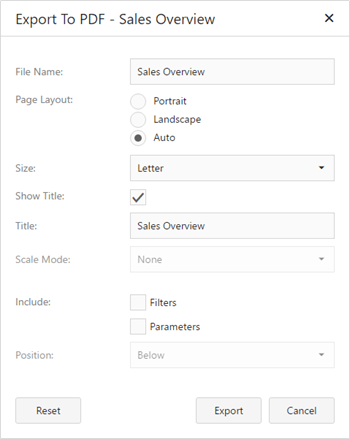
- **File Name** - Specifies the name of the exported PDF file.
- **Page Layout** - Specifies the page orientation used to export a dashboard. You can select between *Portrait*, *Landscape* and *Auto*. Note that in *Auto* mode, page orientation is selected automatically depending on the horizontal and vertical sizes of a dashboard.
- **Size** - Specifies the standard paper size (for instance, *Letter* or *A4*).
- **Show Title** - Specifies whether to apply the dashboard title to the exported document title.
- **Title** - Specifies the title of the exported document.
- **Scale Mode** - Specifies scaling mode when a dashboard is exported.
Note
Note that this option is in effect when **Page Layout** is set to a value different from *Auto*.
- **Include | Filters** - Allows you to include [master filter](/Dashboard/116912/common-features/interactivity/master-filtering) values to the exported document.
- **Include | Parameters** - Allows you to include [parameter](/Dashboard/116918/common-features/advanced-analytics/dashboard-parameters) values to the exported document.
- **Position** - Specifies the position of the master filter and parameter values in the exported document. You can select between *Below* and *Separate Page*.
- Export to Image
- Invokes a dialog, which allows end users to export a dashboard to an image in the specified format. The following options are available:
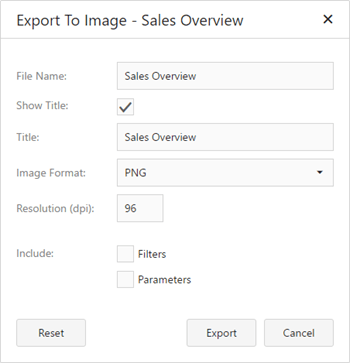
- **File Name** - Specifies the name of the exported Image file.
- **Show Title** - Specifies whether to apply the dashboard title to the exported document title.
- **Title** - Specifies the title of the exported document.
- **Image Format** - Specifies the image format in which the dashboard is exported. The following formats are available: *PNG*, *JPEG*, *SVG*, and *GIF*.
- **Resolution (dpi)** - Specifies the resolution (in dpi) used to export a dashboard.
- **Include | Filters** - Allows you to include [master filter](/Dashboard/116912/common-features/interactivity/master-filtering) values to the exported document.
- **Include | Parameters** - Allows you to include [parameter](/Dashboard/116918/common-features/advanced-analytics/dashboard-parameters) values to the exported document.
- Export to Excel
- Invokes a corresponding dialog that allows end-users to export dashboard data to an Excel file. The following options are available:
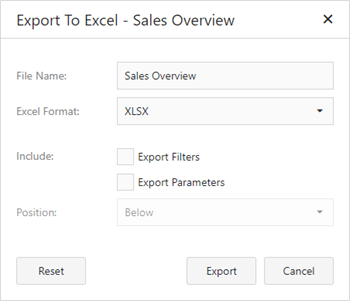
- **File Name** - Specifies the name of the exported Image file.
- **Excel Format** - Specifies the Excel workbook format in which dashboard data is exported. You can select between *XLSX* and *XLS*. Export to CSV is not supported for an entire dashboard, tab, or group.
- **Include | Export Filters** - Allows you to include [master filter](/Dashboard/116912/common-features/interactivity/master-filtering) values in the exported document.
- **Include | Export Parameters** - Allows you to include [parameter](/Dashboard/116918/common-features/advanced-analytics/dashboard-parameters) values in the exported document.
- **Position** - Specifies the position of the master filter and parameter values in the exported document. You can select between *Below* and *Separate Sheet*.
Specify options in the dialog and click **Export** to export the dashboard. To reset the changes to default values, click the **Reset** button.
## Export Dashboard Items in the UI
To export a dashboard item, click the  button in the [dashboard item caption](/Dashboard/117384/web-dashboard/ui-elements-and-customization/dashboard-item-caption) and choose the format.
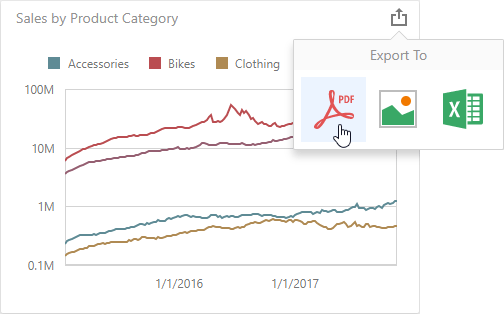
- Export to PDF
- Invokes a corresponding dialog that allows end-users to export a dashboard to a PDF file with specific options.
- Export to Image
- Invokes a dialog, which allows end users to export a dashboard to an image in the specified format.
- Export to Excel
- Invokes a corresponding dialog that allows end-users to export dashboard item data to the Excel workbook or CSV file.
For more information about exporting specifics of different dashboard items, see the **Exporting** topic for the required [dashboard item](/Dashboard/116983/web-dashboard/create-dashboards-on-the-web/dashboard-item-settings).
## Export a Dashboard/Dashboard Items in Code
The following topics contain a list of API used to customize default export options and export dashboard / dashboard items:
- [Manage Exporting Capabilities (ASP.NET Web Forms)](/Dashboard/12140/web-dashboard/integrate-dashboard-component/aspnet-web-forms-dashboard-control/manage-exporting-capabilities)
- [Manage Exporting Capabilities (ASP.NET MVC)](/Dashboard/119766/web-dashboard/integrate-dashboard-component/aspnet-mvc-dashboard-extension/manage-exporting-capabilities)
- [Manage Exporting Capabilities (ASP.NET Core)](/Dashboard/400355/web-dashboard/integrate-dashboard-component/aspnet-core-dashboard-control/manage-exporting-capabilities)
Note
On Linux, MacOS, and Docker, export uses the Skia-based engine from the [DevExpress Drawing Library](/CoreLibraries/404247/devexpress-drawing-library). Add the [DevExpress.Drawing.Skia](https://www.nuget.org/packages/DevExpress.Drawing.Skia/) package to the application, as described in [Linux and MacOS Specifics](/Dashboard/402574/web-dashboard/integrate-dashboard-component/dashboard-backend/linux-and-mac-os-specifics).
## Non-Visual Export
You can use the non-visual [DashboardExporter](/Dashboard/DevExpress.DashboardCommon.DashboardExporter) component to implement server-side export of a dashboard or dashboard items without referencing dashboard UI controls ( [DashboardDesigner](/Dashboard/DevExpress.DashboardWin.DashboardDesigner), [DashboardViewer](/Dashboard/DevExpress.DashboardWin.DashboardViewer), [ASPxDashboard](/Dashboard/DevExpress.DashboardWeb.ASPxDashboard), and so on) or [DashboardConfigurator](/Dashboard/DevExpress.DashboardWeb.DashboardConfigurator).
To integrate the `DashboardExporter` into a service, [install](/GeneralInformation/116042/installation/install-products) the `DevExpress.Dashboard.Core` package. See the [DashboardExporter](/Dashboard/DevExpress.DashboardCommon.DashboardExporter) class description for details.
### Example: Export Dashboards in a Console Application
The following example shows how to use the `DashboardExporter` component in a console application to export Dashboards in PDF format.
[View Example](https://github.com/DevExpress-Examples/bi-dashboard-non-visual-exporter)
- Program.cs
- Program.vb
using System;
using System.IO;
using DevExpress.DashboardCommon;

namespace DashboardExporterApp {
    class Program {
        static void Main(string[] args) {
            if(args.Length < 1 || !Directory.Exists(args[0])) {
                Console.WriteLine("Path to the dashboard and output folders are required");
                return;
            }
            string[] dashboards = Directory.GetFiles(args[0], "*.xml");
            string outputFolder = args[1];
            DashboardExporter exporter = new DashboardExporter();
            exporter.ConnectionError += Exporter_ConnectionError;
            exporter.DataLoadingError += Exporter_DataLoadingError;
            exporter.DashboardItemDataLoadingError += Exporter_DashboardItemDataLoadingError;
            foreach(string dashboard in dashboards) {
                string outputFile = Path.Combine(outputFolder,
                    $"{Path.GetFileNameWithoutExtension(dashboard)}.pdf");
                using FileStream stream = new FileStream(outputFile, FileMode.OpenOrCreate);
                try {
                    exporter.ExportToPdf(dashboard, stream);
                }
                catch(Exception e) {
                    Console.WriteLine($"Unable to export {dashboard}.");
                    Console.WriteLine(e.Message);
                    continue;
                }
            }
            Console.WriteLine("Done!");
        }
        static void Exporter_ConnectionError(object sender,
            DashboardExporterConnectionErrorEventArgs e) {
            Console.WriteLine(
                $"The following error occurs in {e.DataSourceName}: {e.Exception.Message}");
        }
        static void Exporter_DataLoadingError(object sender,
            DataLoadingErrorEventArgs e) {
            foreach(DataLoadingError error in e.Errors)
                Console.WriteLine(
                    $"The following error occurs in {error.DataSourceName}: {error.Error}");
        }
        static void Exporter_DashboardItemDataLoadingError(object sender,
            DashboardItemDataLoadingErrorEventArgs e) {
            foreach(DashboardItemDataLoadingError error in e.Errors)
                Console.WriteLine(
                    $"The following error occurs in {error.DashboardItemName}: {error.Error}");
        }
    }
}
Imports System
Imports System.IO
Imports DevExpress.DashboardCommon

Namespace DashboardExporterApp
    Friend Class Program
        Shared Sub Main(ByVal args() As String)
            If args.Length < 1 OrElse Not Directory.Exists(args(0)) Then
                Console.WriteLine("Path to the dashboard and output folders are required")
                Return
            End If
            Dim dashboards() As String = Directory.GetFiles(args(0), "*.xml")
            Dim outputFolder As String = args(1)
            Dim exporter As New DevExpress.DashboardCommon.DashboardExporter()
            AddHandler exporter.ConnectionError, AddressOf Exporter_ConnectionError
            AddHandler exporter.DataLoadingError, AddressOf Exporter_DataLoadingError
            AddHandler exporter.DashboardItemDataLoadingError, AddressOf Exporter_DashboardItemDataLoadingError
            For Each dashboard As String In dashboards
                Dim outputFile As String = Path.Combine(outputFolder, $"{Path.GetFileNameWithoutExtension(dashboard)}.pdf")
                Using stream = New FileStream(outputFile, FileMode.OpenOrCreate)
                    Try
                        exporter.ExportToPdf(dashboard, stream)
                    Catch e As Exception
                        Console.WriteLine($"Unable to export {dashboard}.")
                        Console.WriteLine(e.Message)
                        Continue For
                    End Try
                End Using
            Next dashboard
            Console.WriteLine("Done!")
        End Sub
        Private Shared Sub Exporter_ConnectionError(ByVal sender As Object, ByVal e As DashboardExporterConnectionErrorEventArgs)
            Console.WriteLine($"The following error occurs in {e.DataSourceName}: {e.Exception.Message}")
        End Sub
        Private Shared Sub Exporter_DataLoadingError(ByVal sender As Object, ByVal e As DataLoadingErrorEventArgs)
            For Each [error] As DataLoadingError In e.Errors
                Console.WriteLine($"The following error occurs in {[error].DataSourceName}: {[error].Error}")
            Next [error]
        End Sub
        Private Shared Sub Exporter_DashboardItemDataLoadingError(ByVal sender As Object, ByVal e As DashboardItemDataLoadingErrorEventArgs)
            For Each [error] As DashboardItemDataLoadingError In e.Errors
                Console.WriteLine($"The following error occurs in {[error].DashboardItemName}: {[error].Error}")
            Next [error]
        End Sub
    End Class
End Namespace
### Example: How to Use MailKit to Send a Dashboard as a Document in PDF
This example demonstrates how to email a dashboard with the [MailKit](https://github.com/jstedfast/MailKit) email client library. To email a document to a specific address, run the application, enter the SMTP host, port, SMTP credentials, and click **Send**.
[View Example](https://github.com/DevExpress-Examples/bi-dashboard-mailkit-export)
### Example: How to Email a Dashboard that Displays Different Data Depending on the Addressee
The following example shows how to use the `DashboardExporter` component in a console application to email a dashboard that displays different data depending on the addressee. The [MailKit](https://github.com/jstedfast/MailKit) email client library is used in this example.
[View Example](https://github.com/DevExpress-Examples/bi-dashboard-mailkit-export-console-app)
## Custom Export
The Dashboard Control raises the [ASPxDashboard.CustomExport](/Dashboard/DevExpress.DashboardWeb.ASPxDashboard.CustomExport)/[DashboardConfigurator.CustomExport](/Dashboard/DevExpress.DashboardWeb.DashboardConfigurator.CustomExport) event before saving the exported document to the PDF and Image formats. The event allows you to customize the exported document.
- Use the [e.GetPrintableControl](/Dashboard/DevExpress.DashboardWeb.CustomExportWebEventArgs.GetPrintableControl%28System.String%29) and [e.GetPrintableControls](/Dashboard/DevExpress.DashboardWeb.CustomExportWebEventArgs.GetPrintableControls) methods to obtain a printable control(s) for a specific dashboard item or the entire dashboard.
- Use the [e.Report](/Dashboard/DevExpress.DashboardWeb.CustomExportWebEventArgs.Report) property to customize the underlying report.
The following table illustrates dashboard items and their corresponding printable XRControls:
| Dashboard Item | XRControl |
| --- | --- |
| [ChartDashboardItem](/Dashboard/DevExpress.DashboardCommon.ChartDashboardItem) | [XRChart](/XtraReports/DevExpress.XtraReports.UI.XRChart) |
| [ScatterChartDashboardItem](/Dashboard/DevExpress.DashboardCommon.ScatterChartDashboardItem) | [XRChart](/XtraReports/DevExpress.XtraReports.UI.XRChart) |
| [PieDashboardItem](/Dashboard/DevExpress.DashboardCommon.PieDashboardItem) | [XRChart](/XtraReports/DevExpress.XtraReports.UI.XRChart) |
| [PivotDashboardItem](/Dashboard/DevExpress.DashboardCommon.PivotDashboardItem) | [XRPivotGrid](/XtraReports/DevExpress.XtraReports.UI.XRPivotGrid) |
| [RangeFilterDashboardItem](/Dashboard/DevExpress.DashboardCommon.RangeFilterDashboardItem) (When [CustomExportBaseEventArgs.ExportMode](/Dashboard/DevExpress.DashboardCommon.CustomExportBaseEventArgs.ExportMode) is SingleItem) | [XRChart](/XtraReports/DevExpress.XtraReports.UI.XRChart) |
| [GaugeDashboardItem](/Dashboard/DevExpress.DashboardCommon.GaugeDashboardItem) | [XRGaugeDashboardItem](/Dashboard/DevExpress.DashboardCommon.XRGaugeDashboardItem) |
| [TextBoxDashboardItem](/Dashboard/DevExpress.DashboardCommon.TextBoxDashboardItem) | [XRTextBox](/Dashboard/DevExpress.DashboardCommon.XRTextBox) |
### Example: How to Customize Dashboard Items in the Exported Document
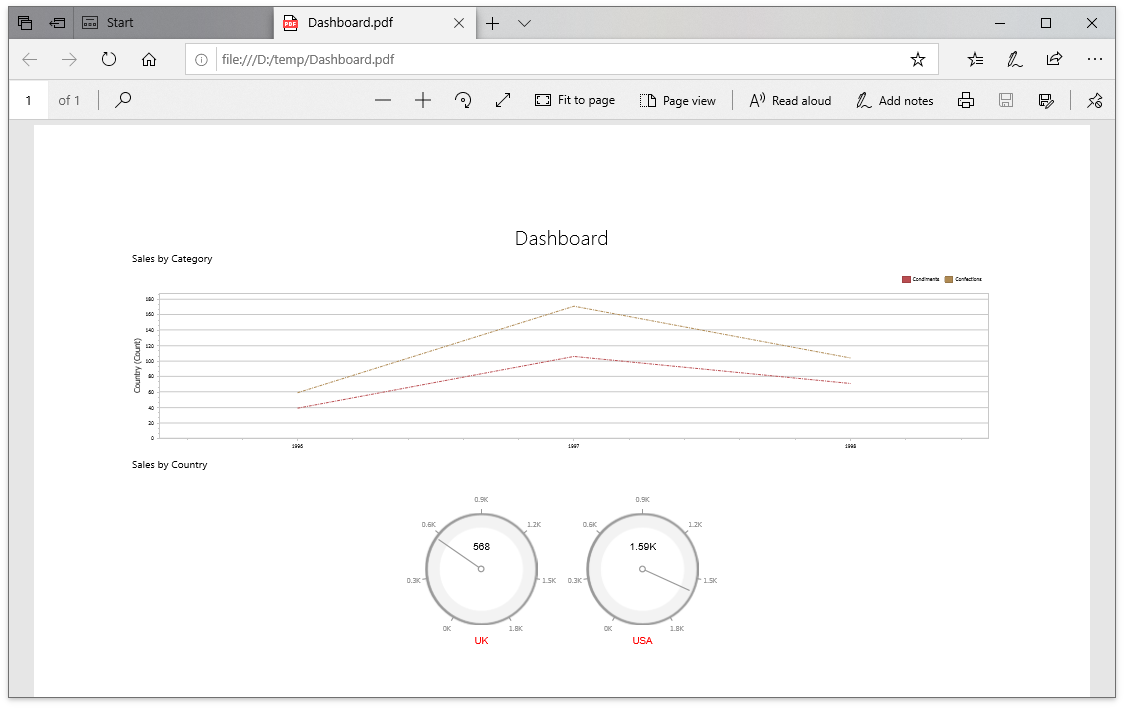
The following example shows how to customize dashboard items in the exported document when you handle the [ASPxDashboard.CustomExport](/Dashboard/DevExpress.DashboardWeb.ASPxDashboard.CustomExport) / [DashboardConfigurator.CustomExport](/Dashboard/DevExpress.DashboardWeb.DashboardConfigurator.CustomExport) events. You can use the [CustomExportWebEventArgs.GetPrintableControls](/Dashboard/DevExpress.DashboardWeb.CustomExportWebEventArgs.GetPrintableControls) method to obtain the printable controls.
- C#
- VB.NET
using DevExpress.DashboardCommon;
using DevExpress.DashboardWeb;
using DevExpress.XtraCharts;
using DevExpress.XtraReports.UI;
using System;
using System.Drawing;
using System.Linq;

protected void CustomizeExport(object sender, CustomExportWebEventArgs e) {
  foreach(var printControl in e.GetPrintableControls()) {
    if(printControl.Value is XRGaugeDashboardItem) {
      var gaugeItemName = printControl.Key;
      var gaugeDashboardItem = e.GetDashboardItem(gaugeItemName) as GaugeDashboardItem;
      foreach(var dashGaugeElement in gaugeDashboardItem.Gauges) {
        foreach(var gaugePanel in e.GetGaugeContext(gaugeItemName).GetPrintableGauges(dashGaugeElement).Cast<XRDashboardGauge>()) {
          if(gaugePanel != null) {
              gaugePanel.MainSeriesLabel.ForeColor = Color.Red;
          }
        }
      }
    }

    if(printControl.Value is XRChart) {
      var chartItemName = printControl.Key;
      var chartDashboardItem = e.GetDashboardItem(chartItemName) as ChartDashboardItem;
      foreach(var pane in chartDashboardItem.Panes) {
        if(pane.Series.Count > 0) {
          foreach(var dashSeries in pane.Series) {
            if(dashSeries != null) {
              var controlSeries = e.GetChartContext(chartItemName).GetControlSeries(dashSeries);
              if(controlSeries != null) {
                foreach(var ser in controlSeries) {
                  LineSeriesView view = ser.View as LineSeriesView;
                  if(view != null) {
                      view.LineStyle.DashStyle = DashStyle.DashDot;
                  }
                }
              }
            }
          }
        }
      }
    }
  }
}
Imports DevExpress.DashboardCommon
Imports DevExpress.DashboardWeb
Imports DevExpress.XtraCharts
Imports DevExpress.XtraReports.UI
Imports System
Imports System.Drawing
Imports System.Linq

Protected Sub ASPxDashboard1_CustomExport(ByVal sender As Object, ByVal e As CustomExportWebEventArgs)
  For Each printControl In e.GetPrintableControls()
    If TypeOf printControl.Value Is XRGaugeDashboardItem Then
      Dim gaugeItemName = printControl.Key
      Dim gaugeDashboardItem = TryCast(e.GetDashboardItem(gaugeItemName), GaugeDashboardItem)
      For Each dashGaugeElement In gaugeDashboardItem.Gauges
        For Each gaugePanel In e.GetGaugeContext(gaugeItemName).GetPrintableGauges(dashGaugeElement).Cast(Of XRDashboardGauge)()
          If gaugePanel IsNot Nothing Then
              gaugePanel.MainSeriesLabel.ForeColor = Color.Red
          End If
        Next gaugePanel
      Next dashGaugeElement
    End If

    If TypeOf printControl.Value Is XRChart Then
      Dim chartItemName = printControl.Key
      Dim chartDashboardItem = TryCast(e.GetDashboardItem(chartItemName), ChartDashboardItem)
      For Each pane In chartDashboardItem.Panes
        If pane.Series.Count > 0 Then
          For Each dashSeries In pane.Series
            If dashSeries IsNot Nothing Then
              Dim controlSeries = e.GetChartContext(chartItemName).GetControlSeries(dashSeries)
              If controlSeries IsNot Nothing Then
                For Each ser In controlSeries
                  Dim view As LineSeriesView = TryCast(ser.View, LineSeriesView)
                  If view IsNot Nothing Then
                      view.LineStyle.DashStyle = DashStyle.DashDot
                  End If
                Next ser
              End If
            End If
          Next dashSeries
        End If
      Next pane
    End If
  Next printControl
End Sub
### Example: How to Add Custom Information to the Exported Dashboard
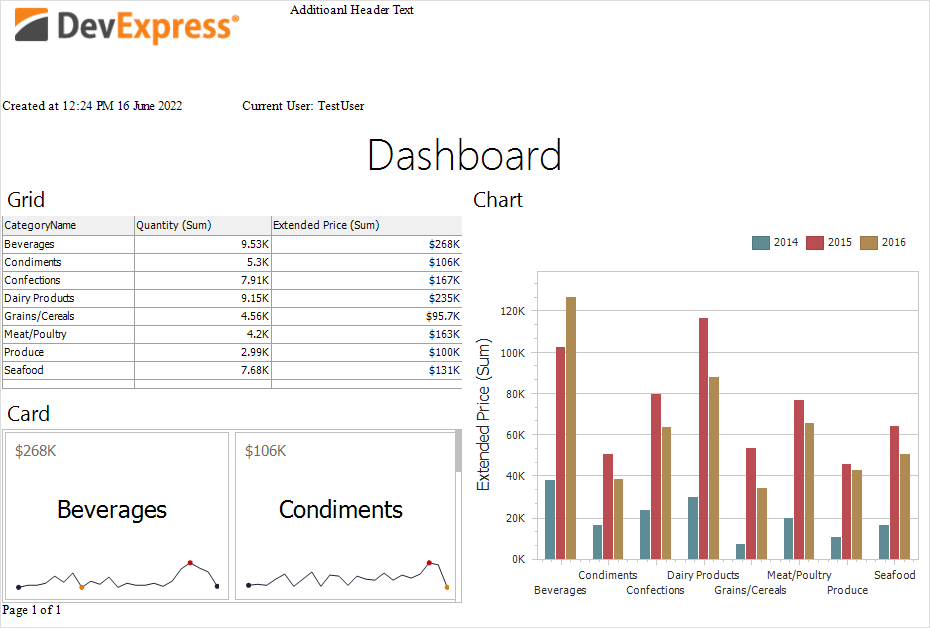
The following example shows how to specify header and footer content of an exported dashboard. For this, the [CustomExport](/Dashboard/DevExpress.DashboardWeb.ASPxDashboard.CustomExport) event is used.
[View Example: ASP.NET Web Forms](https://github.com/DevExpress-Examples/web-forms-dashboard-add-custom-information-to-exported-dashboard)
### Example: How to Add a Custom Header to Each Sheet
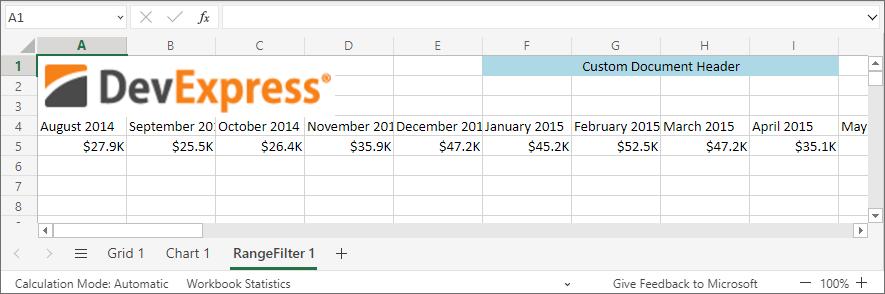
The following example shows how to add a custom header to each sheet for the exported Excel workbook. For this, the [CustomizeExportDocument](/Dashboard/DevExpress.DashboardWeb.ASPxDashboard.CustomizeExportDocument) event is used.
[View Example: ASP.NET Web Forms](https://github.com/DevExpress-Examples/web-dashboard-custom-info-exported-excel)
### Example: How to export the Dashboard to PDF with Different Filter Values on Different Pages
The following example shows how to export a dashboard with different dashboard states (different master filter value) to separate pages and join them to a single PDF document. Multiple exported documents are joined in a single file with the help of the [PdfDocumentProcessor](/OfficeFileAPI/DevExpress.Pdf.PdfDocumentProcessor) class.
[View Example: ASP.NET Web Forms](https://github.com/DevExpress-Examples/web-forms-dashboard-pdf-export-with-filter-values-on-different-pages)
### Example: Non-Visual Custom Export
This example shows how to use the [DashboardExporter](/Dashboard/DevExpress.DashboardCommon.DashboardExporter) component in a console application to export a dashboard with a custom Funnel item.
[View Example](https://github.com/DevExpress-Examples/bi-dashboard-non-visual-custom-export)
## Custom Item Export
You can export custom dashboard items in the following formats:
- PDF
- Image
- Excel (XLS, XLSX)
To export a custom dashboard item, click the **Export To** button in its caption:

To display the **Export To** option for an individual custom dashboard item, override the [allowExportSingleItem](/Dashboard/js-DevExpress.Dashboard.CustomItemViewer#js_devexpress_dashboard_customitemviewer_allowexportsingleitem) method in the item’s configuration file:
- FunnelChartItem.js
class FunnelChartItemViewer extends Dashboard.CustomItemViewer {
   //...
    allowExportSingleItem() {
        return true;
    }
)
Refer to the following help topic for more information on how to configure export of custom dashboard items to different formats: [Custom Item Export](/Dashboard/404365/web-dashboard/advanced-customization/create-a-custom-item/custom-item-export).
## Post-Process Excel and PDF Files
You can post-process resulting Excel and PDF files with the help of dedicated DevExpress libraries (collectively known as **DevExpress Office File API**):
- [PDF Document API](/OfficeFileAPI/16491/pdf-document-api) helps you edit, merge, split, password-protect, and digitally sign PDF files.
- [Spreadsheet Document API](/OfficeFileAPI/14912/spreadsheet-document-api) helps you manage worksheets, cells, values and formulas, graphics, charts, pivot tables, and other objects.
**PDF Document API** and **Spreadsheet Document API** work in applications that target a variety of platforms (Windows Forms, WPF, ASP.NET Web Forms, ASP.NET MVC, ASP.NET Core, Blazor, MAUI) and operating systems (Windows, Linux, macOS).
**Office File API** is included into the [DevExpress Universal Subscription](https://www.devexpress.com/subscriptions/universal.xml) - the same subscription that includes DevExpress Dashboard.