DxComboBoxSettings Class
Contains settings of an auto-generated combo box editor.
Namespace: DevExpress.Blazor
Assembly: DevExpress.Blazor.v23.1.dll
NuGet Package: DevExpress.Blazor
Declaration
public class DxComboBoxSettings :
    DxDropDownEditSettings,
    IComboBoxSettings,
    IDropDownEditSettings,
    IButtonEditSettings,
    ITextEditSettings,
    IEditSettings
Remarks
The Grid component automatically generates editors for columns based on associated data types. For the enum type, the Grid generates a combo box editor.
You can replace the default editor of any column with a combo box. Refer to the following section for more information: Change a Column Editor to Combo Box.
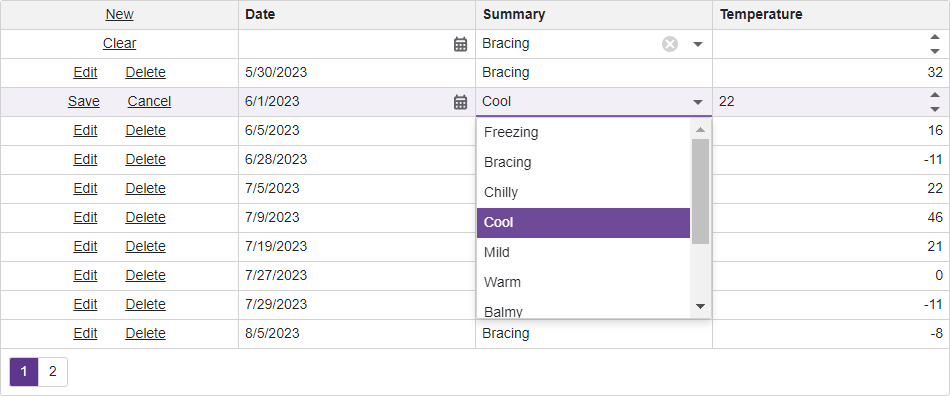
Auto-Generated Combo Box in Edit Row and Filter Row
The Grid component automatically displays column editors in edit row and filter row. In the code sample below, the Grid displays a combo box editor for the Summary column (enumerator data type):
@inject IDbContextFactory<NorthwindContext> NorthwindContextFactory

<DxGrid Data="@forecasts"
        ShowFilterRow="true"
        EditMode="GridEditMode.EditRow"
        EditorRenderMode="GridEditorRenderMode.Integrated"
        CssClass="my-class">
    <Columns>
        <DxGridCommandColumn />
        <DxGridDataColumn FieldName="Date" />
        <DxGridDataColumn FieldName="Summary" />
        <DxGridDataColumn Caption="Temperature" FieldName="TemperatureC" />
    </Columns>
</DxGrid>

@code {
    private WeatherForecast[]? forecasts;

    protected override async Task OnInitializedAsync() {
        forecasts = await ForecastService.GetForecastAsync(DateTime.Now);
    }
}
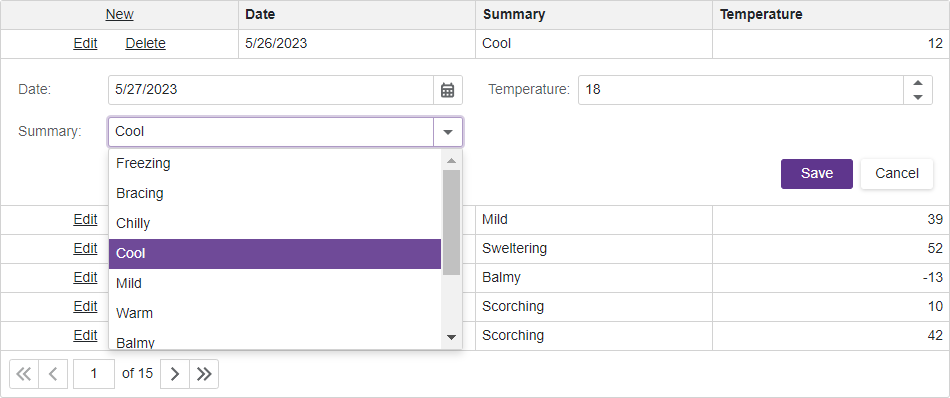
Auto-Generated Combo Box in Edit Forms
The edit form or pop-up edit form can also display auto-generated editors. To place an editor in a form, add a GetEditor(String) method to an EditFormTemplate.
In the code sample below, the Grid displays an auto-generated combo box editor for the Summary column:
@inject IDbContextFactory<NorthwindContext> NorthwindContextFactory

<DxGrid Data="@forecasts"
    PageSize="7">
    <Columns>
        <DxGridCommandColumn />
        <DxGridDataColumn FieldName="Date" />
        <DxGridDataColumn FieldName="Summary" />
        <DxGridDataColumn Caption="Temperature" FieldName="TemperatureC" />
    </Columns>
    <EditFormTemplate Context="editFormContext">
        <DxFormLayout>
            <DxFormLayoutItem Caption="Date:">
                @editFormContext.GetEditor("Date")
            </DxFormLayoutItem>
            <DxFormLayoutItem Caption="Temperature:">
                @editFormContext.GetEditor("TemperatureC")
            </DxFormLayoutItem>
            <DxFormLayoutItem Caption="Summary:" >
                @editFormContext.GetEditor("Summary")
            </DxFormLayoutItem>
        </DxFormLayout>
    </EditFormTemplate>
</DxGrid>

@code {
    private WeatherForecast[]? forecasts;

    protected override async Task OnInitializedAsync() {
        forecasts = await ForecastService.GetForecastAsync(DateTime.Now);
    }
}
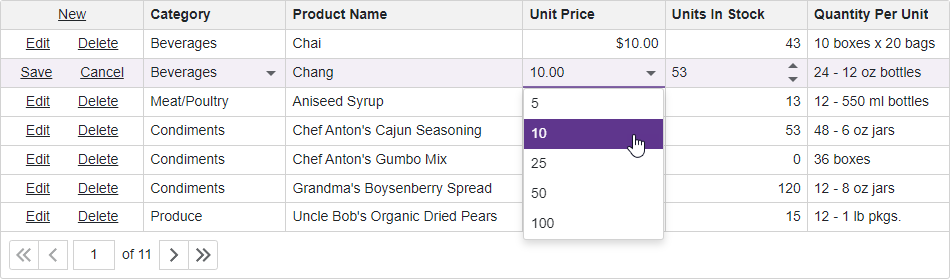
Change a Column Editor to Combo Box
Follow the steps below to replace a column’s default editor with a combo box:
- Add
DxComboBoxSettingsin the column’s EditSettings property. - Specify the Data combo box setting to bind the editor to a data source.
- If the data source contains complex data, specify ValueFieldName and TextFieldName settings to supply combo box items with values and the corresponding display text strings.
The code sample below replaces the default editors of Category and Unit Price columns with combo boxes:
@inject IDbContextFactory<NorthwindContext> NorthwindContextFactory

<DxGrid Data="Products"
        EditMode="GridEditMode.EditRow"
        EditorRenderMode="GridEditorRenderMode.Integrated">
    <Columns>
        <DxGridCommandColumn />
        <DxGridDataColumn FieldName="CategoryId" Caption="Category">
            <EditSettings>
                <DxComboBoxSettings Data="Categories"
                                    ValueFieldName="CategoryId"
                                    TextFieldName="CategoryName"/>
            </EditSettings>
        </DxGridDataColumn>
        <DxGridDataColumn FieldName="ProductName" />
        <DxGridDataColumn FieldName="UnitPrice">
            <EditSettings>
                <DxComboBoxSettings Data="Prices" DisplayFormat="C" EditFormat="F" />
            </EditSettings>
        </DxGridDataColumn>
        <DxGridDataColumn FieldName="UnitsInStock" />
        <DxGridDataColumn FieldName="QuantityPerUnit" />
    </Columns>
</DxGrid>
@code {
    NorthwindContext Northwind { get; set; }
    List<Product> Products { get; set; }
    List<Category> Categories { get; set; }
    List<decimal?> Prices = new List<decimal?>() { 5, 10, 25, 50, 100};

    protected override async Task OnInitializedAsync() {
        Northwind = NorthwindContextFactory.CreateDbContext();
        Products = await Northwind.Products.ToListAsync();
        Categories = await Northwind.Categories.ToListAsync();
    }

    public void Dispose() {
        Northwind?.Dispose();
    }
}
Runtime Customization
At runtime, call the GetColumnEditSettings<T>(String) method to access settings of a combo box editor in the specified column. The example below demonstrates how to dynamically disable the editor.
<DxGrid @ref="Grid"
        Data="Products"
        EditMode="GridEditMode.EditRow"
        EditorRenderMode="GridEditorRenderMode.Integrated">
    <Columns>
        <DxGridCommandColumn />
        <DxGridDataColumn FieldName="CategoryId" Caption="Category">
            <EditSettings>
                <DxComboBoxSettings Data="Categories"
                                    ValueFieldName="CategoryId"
                                    TextFieldName="CategoryName"/>
            </EditSettings>
        </DxGridDataColumn>
        <DxGridDataColumn FieldName="ProductName" />
        <DxGridDataColumn FieldName="UnitPrice" />
        <DxGridDataColumn FieldName="UnitsInStock" />
        <DxGridDataColumn FieldName="QuantityPerUnit" />
    </Columns>
</DxGrid>
<DxButton Text="Disable the Category" Click="Button_Click" />

@code {
    IGrid Grid { get; set; }
    NorthwindContext Northwind { get; set; }
    List<Product> Products { get; set; }
    List<Category> Categories { get; set; }

    void Button_Click() {
        var comboBoxSettings = Grid.GetColumnEditSettings<IComboBoxSettings>("CategoryId");
        if(comboBoxSettings != null){
            Grid.BeginUpdate();
            comboBoxSettings.Enabled = false;
            Grid.EndUpdate();
        }
    }

    protected override async Task OnInitializedAsync() {
        Northwind = NorthwindContextFactory.CreateDbContext();
        Products = await Northwind.Products.ToListAsync();
        Categories = await Northwind.Categories.ToListAsync();
    }

    public void Dispose() {
        Northwind?.Dispose();
    }
}