Create a Report with a Visual PDF Signature in the Visual Studio Report Designer
- 3 minutes to read
This tutorial describes how to create a report with a visual PDF signature.
- View Online Demo.
- View Desktop Demo (the DevExpress Demo Center should be installed).

Tip
To get started with this tutorial, create a new project or open an existing project, then add a new blank report to the project.
Create a Report Layout
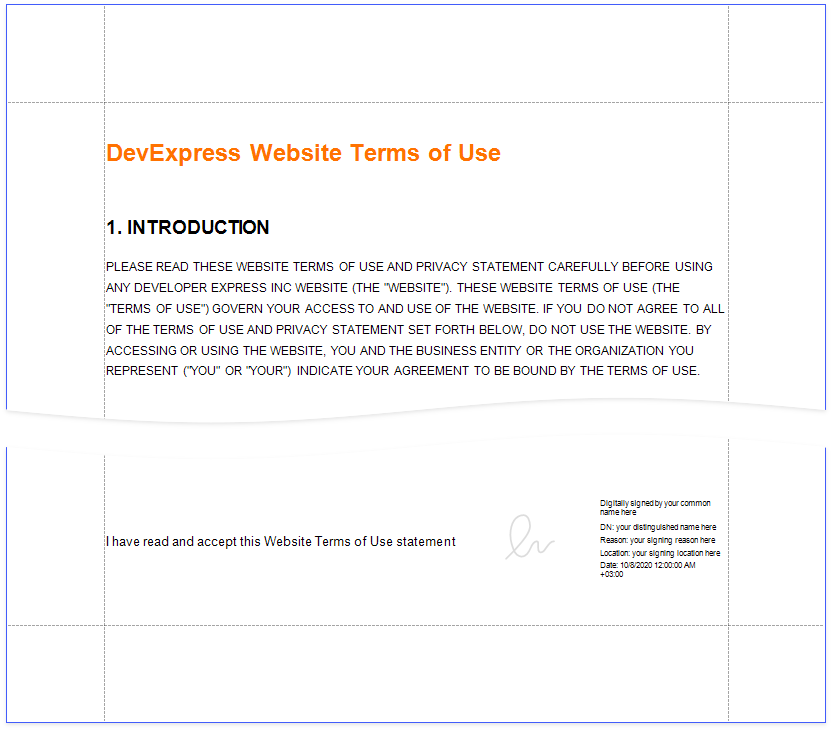
Drop the XRRichText control from the DX.26.1: Report Controls Toolbox tab onto the Detail band.

Double-click the control and insert text of the DevExpress Website Terms of Use.

Right-click the design surface. Select Insert Band / ReportFooter from the context menu. Enable the footer band‘s PrintAtBottom property.

Drop the XRPdfSignature control from the DX.26.1: Report Controls Toolbox tab onto the Report Footer band.

Place the XRLabel control to the left of the XRPdfSignature and add the following text: I have read and accept this Website Terms of Use statement.

Click the Preview tab to see the result.
Export and Sign the Report
In Preview, click Export Document and select PDF File.

In the invoked PDF Export Options dialog, click the Digital Signature option’s ellipsis button.

In the invoked Signature Options dialog, choose a certificate and specify signature details.

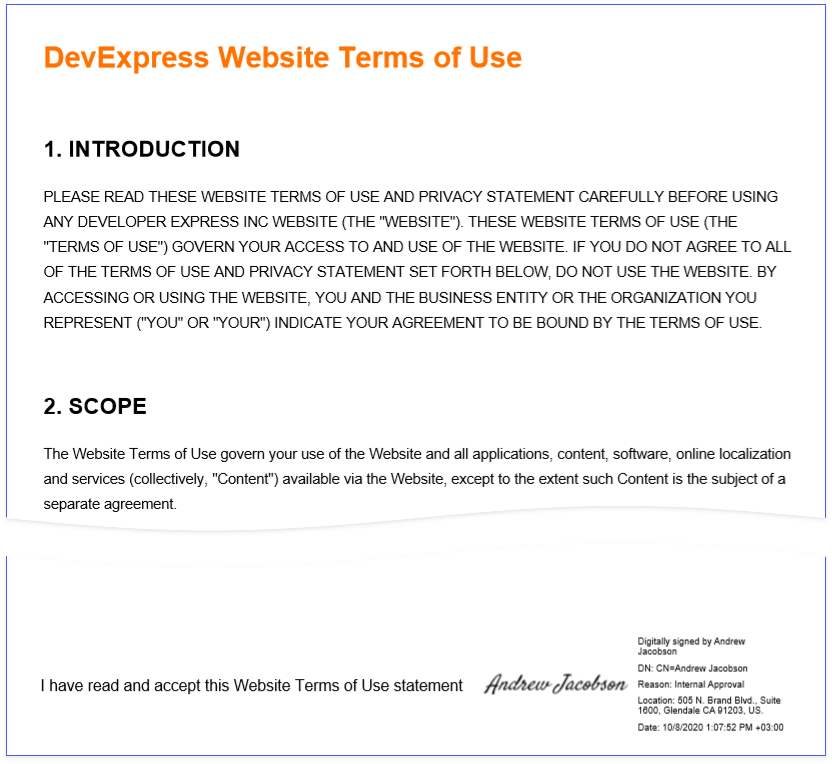
Save and open the document to see the final result.
Tip
All signature fields are displayed in the exported document. You can also hide unnecessary fields. See the XRPdfSignature control’s description for details on how to configure the fields.
To sign the exported PDF document in the Web Document Viewer, use one of the following options:
- Sign the document in the Web Document Viewer’s UI
- Implement the IPdfSignatureOptionsProviderAsync interface to register available signature options. Select a signature from the Signature drop-down list in the Export to PDF section.
- Customize the exported document
- Override the CustomizeExportDocumentOnFinish method to retrieve and sign the exported document.
The following example shows how to sign a document exported to PDF:
Add an Accessible Description
You can specify an accessible description for a digital signature to improve exported PDF document accessibility. The description is added when the document is PDF/UA-compatible (PdfExportOptions.PdfUACompatibility is set to PdfUA1 or PdfUA2).
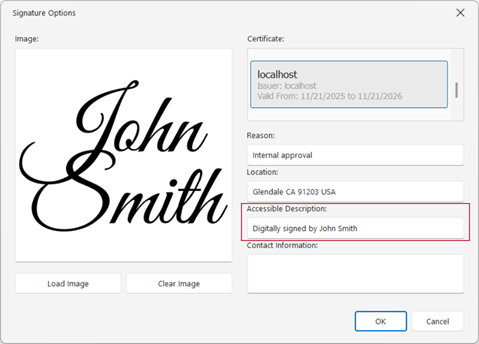
The way you specify an accessible description depends on how you use a XRPdfSignature control. If the control displays the document signature (SignatureOptions.DisplayDocumentSignature is true), use the
PdfSignatureOptions.AccessibleDescription property.
If the XRPdfSignature control is used as a signature placeholder (SignatureOptions.DisplayDocumentSignature is false), you can specify a description with the XRControl.AccessibleDescription property.
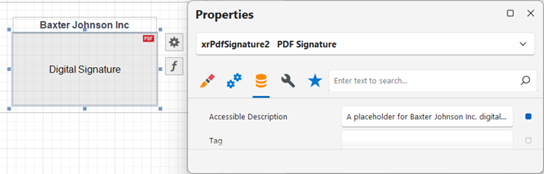
The following image displays the result:
- The first
XRPdfSignaturecontrol displays the document signature and usesPdfSignatureOptions.AccessibleDescription. - The second
XRPdfSignaturecontrol does not display the document signature and usesXRControl.AccessibleDescription.
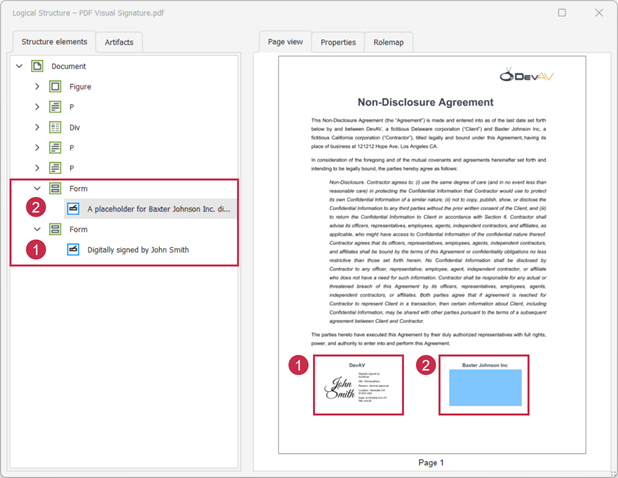
When AccessibleDescription is not specified and the document is exported as an accessible PDF, default accessibility text is used (“Digital signature” or “Digital signature placeholder”). Regular PDF export does not include an accessibility description.
PDF Signature Control Limitation
- The XRPdfSignature control is not exported to non-PDF formats. A placeholder is added to exported documents instead.
- In .NET Framework projects that reference DevExpress assemblies directly, install the BouncyCastle.Cryptography NuGet package to export a report to PDF with a digital signature.
Create a Report with a Visual PDF Signature in the End-User Report Designer
Tutorials that explain how to create different reports in EUD Report Designers for WinForms and Web are included in the End-User Documentation online help section: